Hướng dẫn sử dụng TLT Bios Config ToolTLT Bios Config Tool - User guide
Tools chuyên nghiệp dành riêng cho BIOS - Build - Unlock. Hỗ trợ đa dạng và chuyên nghiệp.
A professional tool built for BIOS - Build - Unlock. Wide and professional support.
Bắt đầu nhanhQuick start
- Đặt Bios_Edit_Tool.exe vào một thư mục bạn có quyền ghi (ví dụ trong ổ D:). Không chạy từ trong file nén.
- Mở tool khi máy có Internet. Lần đầu tool hiện cửa sổ License: gửi Machine ID cho admin, nhận key rồi dán vào và bấm kích hoạt.
- Nếu tool báo thiếu Kho dữ liệu, tick các kho cần dùng và bấm Tải về. Có thể bấm Bỏ qua và tải sau ở Option › Kho dữ liệu...
- Mở file BIOS bằng File › Mở file .bin... hoặc kéo thả file vào cửa sổ. Khung Bios Info bên phải hiện hãng, model, serial, phiên bản ME.
- Chọn chức năng ở cột Công cụ bên trái. Kết quả luôn được lưu thành file mới bên cạnh file gốc.
- Put Bios_Edit_Tool.exe in a folder you can write to (for example on drive D:). Do not run it from inside a zip file.
- Start the tool while the PC is online. On first start the License window opens: send the Machine ID to the admin, paste the key you receive and activate.
- If the tool reports missing data stores, tick the ones you need and press Download. You can skip and download later from Option › Data stores...
- Open a BIOS file with File › Open .bin file... or drag it onto the window. The Bios Info panel on the right shows vendor, model, serial and ME version.
- Pick a function in the Tools column on the left. Results are always saved as a new file next to the original.
License và kết nốiLicense and connection
Tool kiểm tra bản quyền với máy chủ, vì vậy cần Internet trong lúc dùng. Mất mạng ngắn vẫn dùng tiếp được; mất mạng lâu, tool hiện hộp Kết nối Internet với hai nút Thử lại và Thoát.
The tool checks the license with the server, so it needs Internet while in use. A short network drop is fine; after a longer one the tool shows the Internet connection dialog with Retry and Exit.
Kích hoạt keyActivating a key
- Mở Giới thiệu › License. Copy dòng Machine ID (dạng XXXX-XXXX-XXXX) gửi cho admin.
- Dán key vào ô rồi bấm kích hoạt, hoặc chọn file license.lic admin gửi.
- Admin cũng có thể gửi key online: tool tự nhận ở lần mở tiếp theo và báo "Đã nhận key mới từ admin".
- Góc trên hiện gói đang dùng (Demo, Basic, Pro, Master). Key vĩnh viễn hiện thêm chữ Lifetime.
- Open About › License. Copy the Machine ID line (XXXX-XXXX-XXXX) and send it to the admin.
- Paste the key and activate, or pick the license.lic file the admin sent.
- The admin can also send a key online: the tool picks it up at the next start and shows "Received a new key from admin".
- The top bar shows your plan (Demo, Basic, Pro, Master). A permanent key also shows Lifetime.
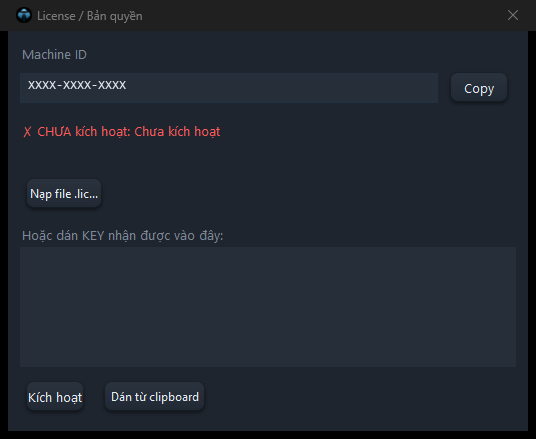 123456
- 1Machine ID của máy: gửi cho admin.
- 2Copy Machine ID.
- 3Nạp file license.lic admin gửi.
- 4Hoặc dán key vào đây.
- 5Kích hoạt key.
- 6Dán key từ clipboard.
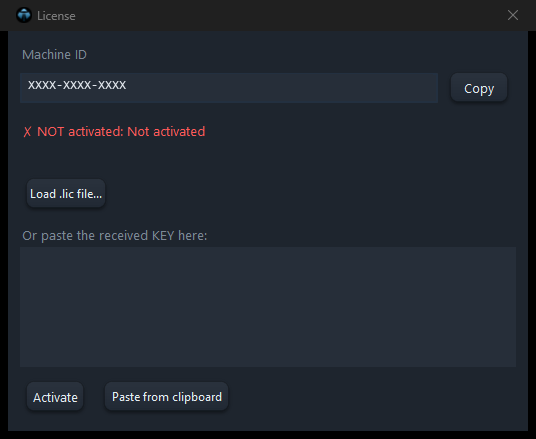 123456
- 1This PC Machine ID: send it to the admin.
- 2Copies the Machine ID.
- 3Loads the license.lic from the admin.
- 4Or paste the key here.
- 5Activates the key.
- 6Pastes the key from the clipboard.
Cửa sổ chínhMain window
| Khu vựcArea | Dùng đểUsed for |
|---|---|
| File | Mở, lưu ra .bin, thoát.Open, save as .bin, exit. |
| Option | Bảng option ẩn, quét lại DMI, Kho dữ liệu, tìm kiếm Hex/Unicode, tuỳ chỉnh giao diện và ngôn ngữ.Hidden option table, DMI rescan, data stores, Hex/Unicode search, look and language settings. |
| View | Lọc những gì hiện trên cây Volume.Filter what the Volume tree shows. |
| Compare | So sánh 2 file BIOS, so sánh điện áp.Compare two BIOS files, compare voltages. |
| Bios Data | Kho BIOS riêng của bạn.Your own BIOS library. |
| Giới thiệu | License, kiểm tra cập nhật, thông tin phiên bản.License, check for updates, version info. |
| Cột Công cụTools column | ME Cleaner, Bios Rebuild, Bios Extract, Unlock, Tools, General, Lenovo New Gen, MRG/SPL.ME Cleaner, Bios Rebuild, Bios Extract, Unlock, Tools, General, Lenovo New Gen, MRG/SPL. |
| Cây VolumeVolume tree | Cấu trúc file: vùng Descriptor, ME, BIOS, GbE, EC và các module bên trong.File layout: Descriptor, ME, BIOS, GbE, EC regions and the modules inside. |
| Bios Info | Thông tin máy đọc từ file. Nút Support mở trang hỗ trợ của hãng.Machine info read from the file. Support opens the vendor support site. |
| Nhật ký hoạt độngActivity log | Kết quả từng thao tác.Result of each action. |
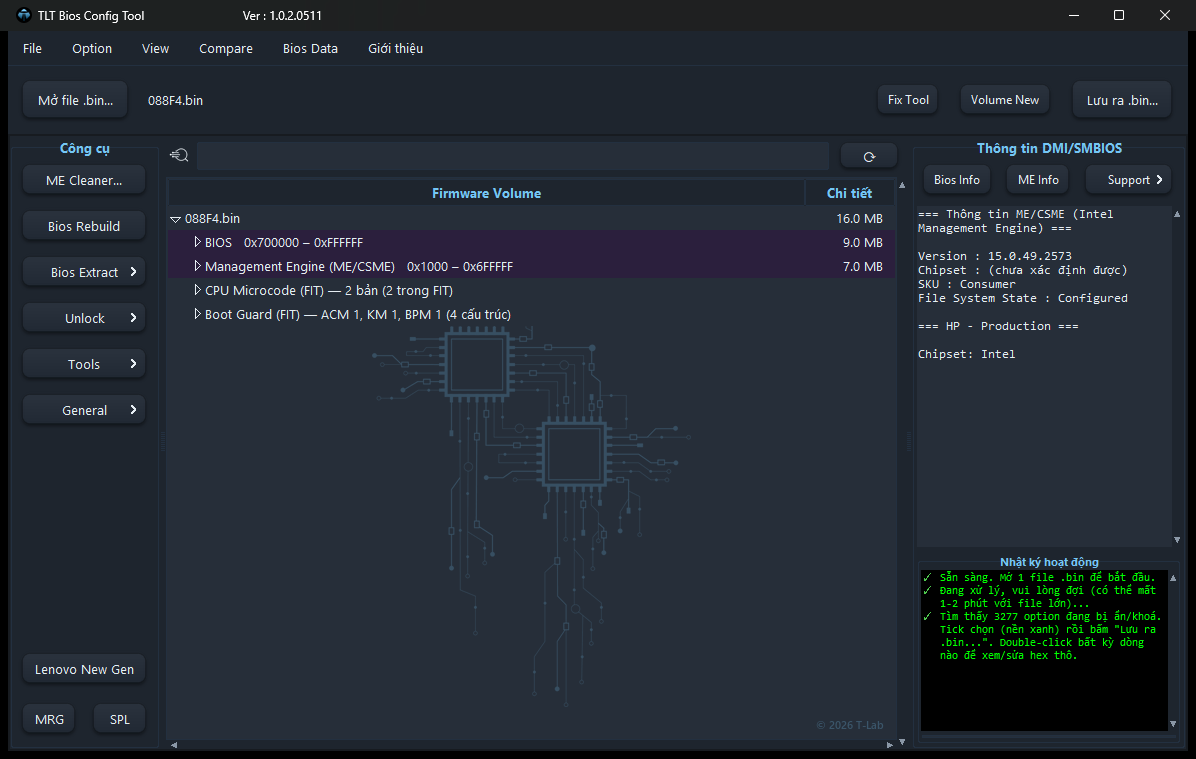 123456789101112131415161718192021
- 1Thanh menu: File, Option, View, Compare, Bios Data, Giới thiệu (License, cập nhật).
- 2Mở file BIOS đọc từ chip. Có thể kéo thả file vào cửa sổ.
- 3Mở Fix Tool: sửa nhanh ME, TPM, Audio, Wifi, SSD.
- 4Mở thêm một cửa sổ cây Volume để xem file khác song song.
- 5Lưu file sau khi bật option ẩn hoặc sửa trên cây.
- 6Thay dữ liệu vùng Intel ME bằng ME sạch.
- 7Nạp lại BIOS / ME theo gói update của hãng.
- 8Tách gói update của hãng (Dell, HP, Lenovo, Asus, Acer, Panasonic, Surface, EC, UEFI).
- 9Các công cụ gỡ mật khẩu và khoá máy.
- 10DMI, UEFI Trans, Disable Ram, Chromebook, VGA Setup.
- 11Setup Var, MFS Explorer, NVRAM Vars, Security Info.
- 12Vá Lenovo đời mới và lấy mã 16 số từ request.
- 13Ghép hai file thành một.
- 14Tách một file thành hai phần.
- 15Cây Volume: các vùng và module của file. Chuột phải để trích xuất, thay thế, giải nén. Nhấp đúp để mở Hex.
- 16Ô lọc cây theo tên module.
- 17Quét lại thông tin máy.
- 18Hiện thông tin máy: hãng, model, serial, BIOS, Windows Key, MAC.
- 19Hiện thông tin Intel ME: phiên bản, SKU, trạng thái.
- 20Mở trang hỗ trợ của hãng.
- 21Nhật ký hoạt động: kết quả từng thao tác.
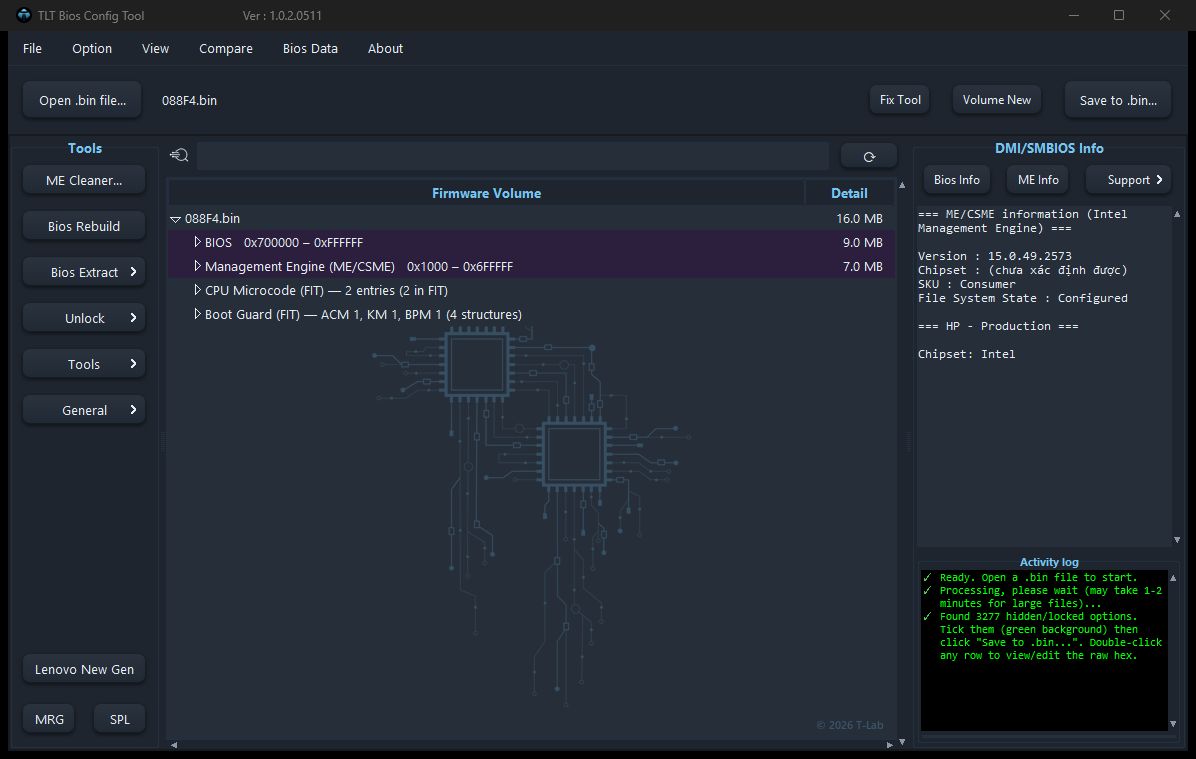 123456789101112131415161718192021
- 1Menu bar: File, Option, View, Compare, Bios Data, About (License, updates).
- 2Open a BIOS file read from the chip. You can also drag the file onto the window.
- 3Opens Fix Tool: quick ME, TPM, Audio, Wifi, SSD fixes.
- 4Opens another Volume tree window to view a second file.
- 5Saves the file after unlocking hidden options or editing in the tree.
- 6Replaces Intel ME data with a clean ME.
- 7Rebuilds BIOS / ME from the vendor update package.
- 8Unpacks vendor update packages (Dell, HP, Lenovo, Asus, Acer, Panasonic, Surface, EC, UEFI).
- 9Password and lock removal tools.
- 10DMI, UEFI Trans, Disable Ram, Chromebook, VGA Setup.
- 11Setup Var, MFS Explorer, NVRAM Vars, Security Info.
- 12Patches newer Lenovo and gets the 16-digit code from a request.
- 13Joins two files into one.
- 14Splits one file into two parts.
- 15Volume tree: regions and modules of the file. Right-click to extract, replace or decompress. Double-click opens Hex.
- 16Filter the tree by module name.
- 17Rescans the machine info.
- 18Shows machine info: vendor, model, serial, BIOS, Windows Key, MAC.
- 19Shows Intel ME info: version, SKU, state.
- 20Opens the vendor support site.
- 21Activity log: result of each action.
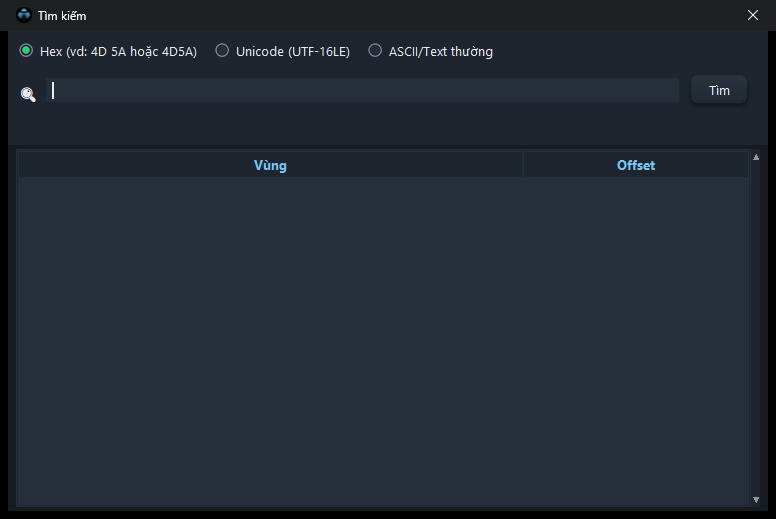 1234
1234- 1Kiểu tìm: Hex, Unicode, ASCII.
- 2Nhập chuỗi cần tìm.
- 3Tìm trong file đang mở.
- 4Kết quả: nhấp đúp để mở Hex tại vị trí đó.
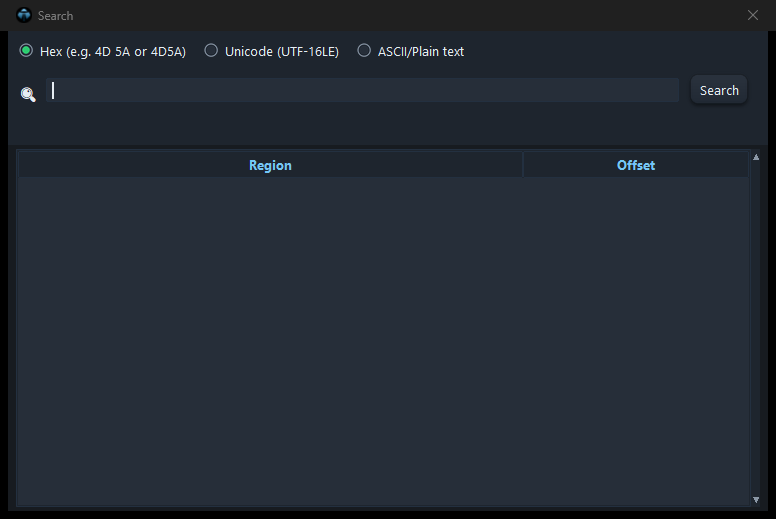 1234
1234- 1Search type: Hex, Unicode, ASCII.
- 2Type what to find.
- 3Searches the open file.
- 4Results: double-click to open Hex at that offset.
Mở và lưu fileOpening and saving
- Nhận file dump đọc từ chip (.bin), file gói update của hãng (.exe, .msi, .cap, .hdr, .rcv) tuỳ từng cửa sổ.
- Kéo thả được vào hầu hết các cửa sổ.
- Hộp Lưu luôn mở sẵn thư mục chứa file đang làm, tên đề xuất có hậu tố như _Rebuild, _patch, _unlock.
- Kích thước file lưu ra luôn bằng file gốc, nạp thẳng vào chip được.
- Accepts chip dumps (.bin) and vendor update packages (.exe, .msi, .cap, .hdr, .rcv) depending on the window.
- Drag and drop works in almost every window.
- The Save dialog always opens in the folder of the file you work on, with a suffix such as _Rebuild, _patch, _unlock.
- The saved file always has the original size, ready to flash.
Cây Volume và chuột phảiVolume tree and right-click
Bấm chuột phải vào một mục trên cây để dùng:
Right-click an item in the tree to:
- Trích xuất ra .bin: lưu riêng phần đó.
- Thay thế bằng file khác: thay module hoặc vùng bằng file của bạn. Với vùng GbE, tool tự giữ MAC LAN của máy.
- Giải mã / Giải nén: xem nội dung module nén.
- Trích xuất chuỗi văn bản: lấy Service Tag, tên hãng… đọc được.
- Nhấp đúp để mở trình sửa Hex.
- Extract to .bin: save that part on its own.
- Replace with another file: replace a module or region. For the GbE region the tool keeps the machine's LAN MAC.
- Decode / Decompress: view a compressed module.
- Extract readable text: Service Tag, vendor name and similar strings.
- Double-click to open the Hex editor.
Bios Rebuild
Nạp lại BIOS và ME theo gói update chính hãng, giữ thông tin riêng của máy. Tab theo hãng: Dell, HP, Lenovo, Hãng khác, Surface, Snapdragon. Tool tự chọn tab theo nội dung file bạn mở.
Rebuilds BIOS and ME from the official update package while keeping the machine's own data. Vendor tabs: Dell, HP, Lenovo, Other vendors, Surface, Snapdragon. The tool picks the tab from the file you open.
Quy trìnhWorkflow
- Bấm Bios mở file dump của máy.
- Bấm Open EXE chọn gói update, hoặc Download OEM để tool tìm và tải gói đúng model.
- Tool tự tách gói, tick sẵn vùng Region và ME phù hợp. Gói nhiều model sẽ hỏi chọn Machine ID hoặc Ver.
- Tick việc cần làm rồi bấm Rebuild. File mới được lưu và thư mục chứa file được mở.
- Press Bios and open the machine dump.
- Press Open EXE to pick the update package, or Download OEM to let the tool find and download the right one.
- The tool unpacks the package and ticks the matching Region and ME. Multi-model packages ask for the Machine ID or Ver.
- Tick what to do and press Rebuild. The new file is saved and its folder opens.
| Ô chọnOption | Tác dụngEffect |
|---|---|
| Bios Repair | Ghi vùng BIOS của gói vào máy.Writes the package BIOS region. |
| Me Repair | Ghi các partition ME đã tick (nút Custom chọn sẵn bộ thường dùng).Writes the ticked ME partitions (Custom picks the usual set). |
| All Me | Thay cả vùng ME theo gói. Nếu ME máy bị hỏng bố cục, tool hỏi một dump tham chiếu cùng model.Replaces the whole ME region. If the machine ME layout is broken, the tool asks for a reference dump of the same model. |
| Keep Nvram | Giữ toàn bộ thiết lập NVRAM của máy.Keeps the machine NVRAM settings. |
| Keep DMI | Giữ Serial, Model, UUID, Windows Key, MAC…Keeps Serial, Model, UUID, Windows Key, MAC… |
| Reset VSS | Làm sạch NVRAM (xoá mật khẩu, thiết lập).Clears NVRAM (passwords, settings). |
| Fitc Config | Gạt trái: cấu hình ME theo gói. Gạt phải: giữ cấu hình ME của máy gốc.Left: ME configuration from the package. Right: keep the original machine ME configuration. |
| Auto Repair | Tự tick Bios Repair + Me Repair rồi rebuild.Ticks Bios Repair + Me Repair and rebuilds. |
| EC Sync / EC Repair | Máy 2 chip: mở file chip EC riêng, mỗi chip lưu một file.Two-chip machines: open the EC chip file; each chip is saved to its own file. |
| Fix Service Tag | (Dell) Làm sạch dữ liệu EC giữ Service Tag cũ.(Dell) Clears the EC data holding the old Service Tag. |
| Build Origin | (Dell) Dựng ảnh BIOS sạch như xuất xưởng theo gói.(Dell) Builds a factory-clean image from the package. |
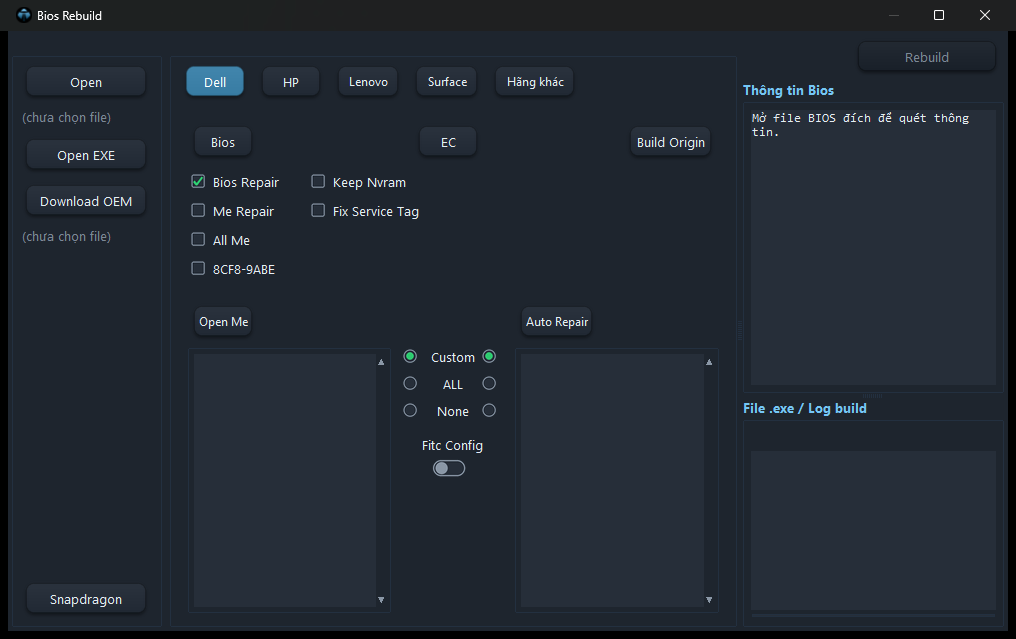 1234567891011121314151617181920212223
- 1Mở file dump của máy cần làm (file đích).
- 2Chọn gói update của hãng (.exe, .msi, .hdr, .rcv). Tool tự tách gói.
- 3Tự tìm và tải gói đúng model từ trang hãng.
- 4Tab theo hãng. Tool tự chọn tab theo file đang mở.
- 5Mở file dump ngay trong tab.
- 6Ghi vùng BIOS của gói vào máy.
- 7Ghi các partition ME đang tick ở khung ME.
- 8Thay cả vùng ME theo gói, giữ dữ liệu riêng của máy.
- 9Mở khoá Dell 8CF8-9ABE cùng lúc rebuild (cần key có quyền).
- 10Giữ thiết lập NVRAM của máy.
- 11Làm sạch dữ liệu EC còn giữ Service Tag cũ.
- 12Mở file chip EC riêng (máy 2 chip).
- 13Dựng ảnh BIOS sạch như xuất xưởng từ gói, theo Machine ID.
- 14Nạp file ME hoặc dump khác làm nguồn ME.
- 15Khung ME: partition của ME nguồn, tick cái cần ghi.
- 16Custom / ALL / None: chọn nhanh partition ME (trái) và Region (phải).
- 17Fitc Config: gạt trái lấy cấu hình ME theo gói, gạt phải giữ cấu hình ME của máy gốc.
- 18Tự tick Bios Repair + Me Repair rồi rebuild.
- 19Khung Region: vùng BIOS, GbE, EC của gói sẽ ghi.
- 20Thực hiện và lưu file mới cạnh file gốc.
- 21Thông tin Bios của file đích.
- 22Danh sách module tách từ gói và nhật ký rebuild.
- 23Tab riêng cho máy Snapdragon (ARM).
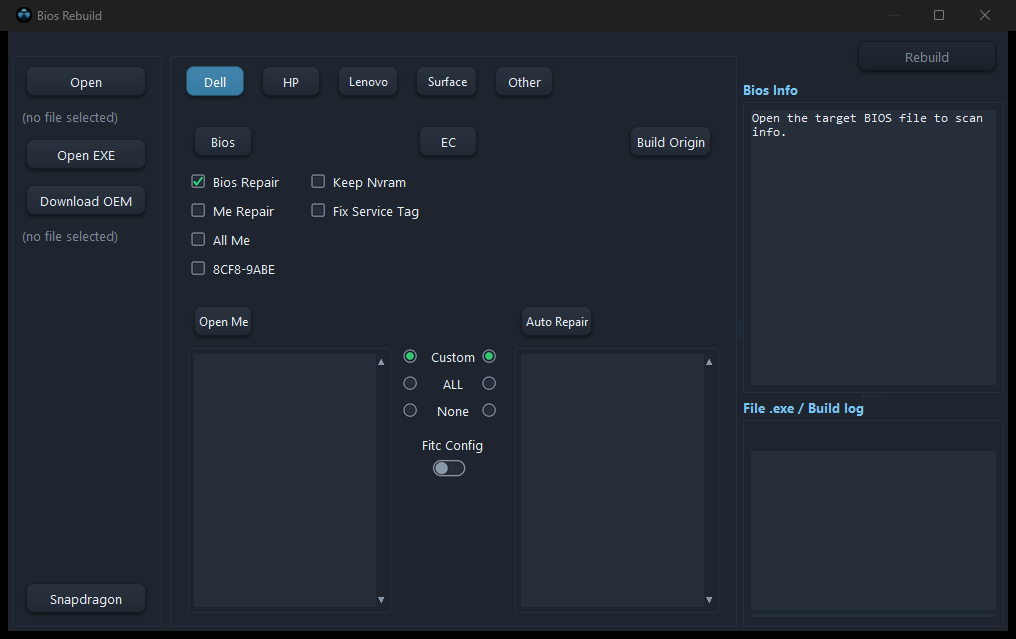 1234567891011121314151617181920212223
- 1Opens the machine dump to work on (target).
- 2Pick the vendor update package (.exe, .msi, .hdr, .rcv). The tool unpacks it.
- 3Finds and downloads the matching package from the vendor.
- 4Vendor tabs. The tool selects the tab from the opened file.
- 5Opens the dump from inside the tab.
- 6Writes the package BIOS region.
- 7Writes the ME partitions ticked in the ME list.
- 8Replaces the whole ME region, keeping machine-specific data.
- 9Dell 8CF8-9ABE unlock during rebuild (needs a licensed key).
- 10Keeps the machine NVRAM settings.
- 11Clears EC data that still holds the old Service Tag.
- 12Opens the separate EC chip file (two-chip machines).
- 13Builds a factory-clean image from the package for the Machine ID.
- 14Loads an ME file or another dump as the ME source.
- 15ME list: partitions of the source ME; tick what to write.
- 16Custom / ALL / None: quick select for ME (left) and Region (right).
- 17Fitc Config: left uses the package ME configuration, right keeps the original machine configuration.
- 18Ticks Bios Repair + Me Repair and rebuilds.
- 19Region list: BIOS, GbE, EC of the package to write.
- 20Runs the rebuild and saves a new file next to the original.
- 21Bios info of the target file.
- 22Modules unpacked from the package and the rebuild log.
- 23Separate tab for Snapdragon (ARM) machines.
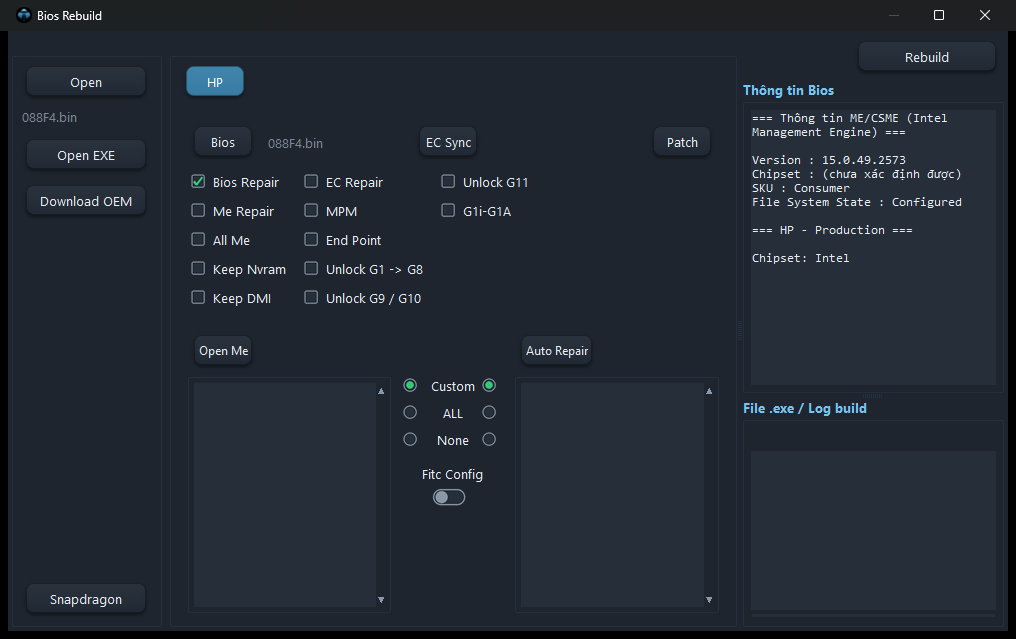 12345
12345- 1Ghi lại firmware chip EC (máy HP 2 chip).
- 2Các ô mở khoá HP theo đời máy. Tick đúng đời rồi bấm Patch. Ô ghi "(cần key)" cần key có đặc quyền.
- 3Giữ Serial, Model, UUID, Windows Key, MAC của máy.
- 4Mở file chip thứ hai (EC) để rebuild cùng lúc, mỗi chip lưu riêng.
- 5Chỉ chạy các ô mở khoá HP, không rebuild.
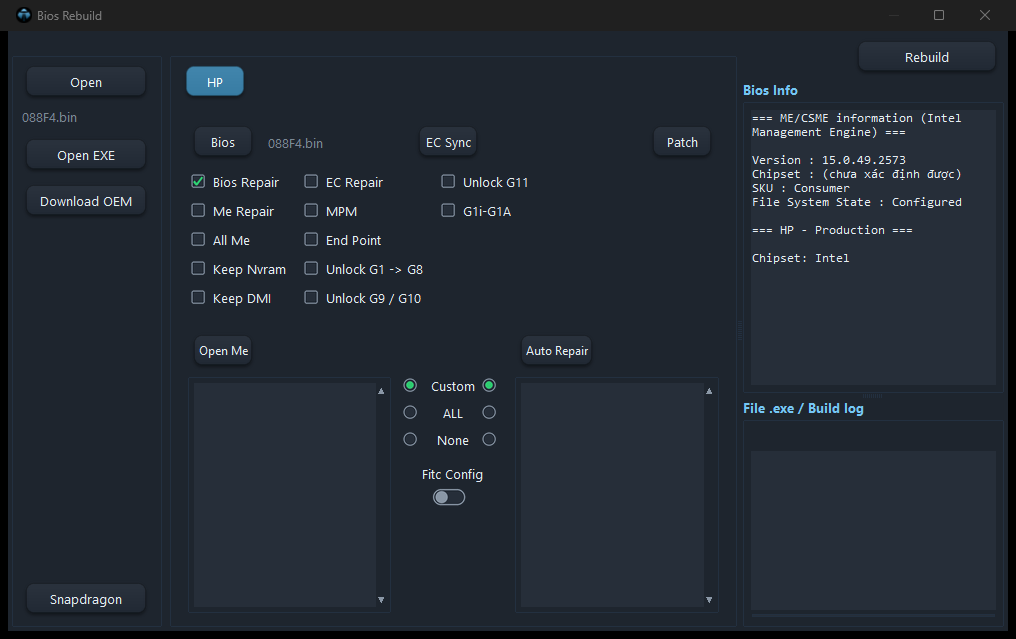 12345
12345- 1Rewrites the EC chip firmware (two-chip HP).
- 2HP unlock boxes by model generation. Tick the right one and press Patch. Boxes marked "(key required)" need a licensed key.
- 3Keeps Serial, Model, UUID, Windows Key and MAC.
- 4Opens the second (EC) chip to rebuild together; each chip is saved separately.
- 5Runs only the HP unlock boxes, without a rebuild.
ME Cleaner
Thay dữ liệu vùng Intel ME bằng bản ME sạch cùng phiên bản và cùng SKU.
Replaces the Intel ME data with a clean ME of the same version and SKU.
- Chọn ME mới...: chọn file ME sạch. Tool chỉ nhận file ME, không nhận nguyên dump. Danh sách gợi ý chỉ hiện file cùng SKU với máy.
- Chọn partition bằng Custom / All / None, rồi bấm Clear Data ME để ghi và lưu.
- FIT Clean: dựng lại ME bằng Intel FIT. Nếu thiếu bản FIT, dùng Add Fit Tools để thêm.
- Me Config: xem và sửa thiết lập ME (EOM, PTT, AMT…). Tool kiểm tra lại bằng FIT trước khi lưu.
- PCI Config: chỉnh cấu hình cổng SSD, combo SATA/PCIe; mục Driver SSD áp driver từ BIOS tham khảo.
- Verify RSA: kiểm tra chữ ký từng partition ME.
- Save: lưu ME đang chọn vào kho ME với tên chuẩn.
- Choose new ME...: pick a clean ME file. Full dumps are refused. The suggestion list only shows files of the machine's SKU.
- Choose partitions with Custom / All / None, then press Clear Data ME to write and save.
- FIT Clean: rebuild the ME with Intel FIT. If a FIT version is missing, add it with Add Fit Tools.
- Me Config: view and change ME settings (EOM, PTT, AMT…). The tool verifies with FIT before saving.
- PCI Config: SSD port settings, SATA/PCIe combo; Driver SSD applies drivers from a reference BIOS.
- Verify RSA: checks the signature of every ME partition.
- Save: stores the selected ME in the ME store with a standard name.
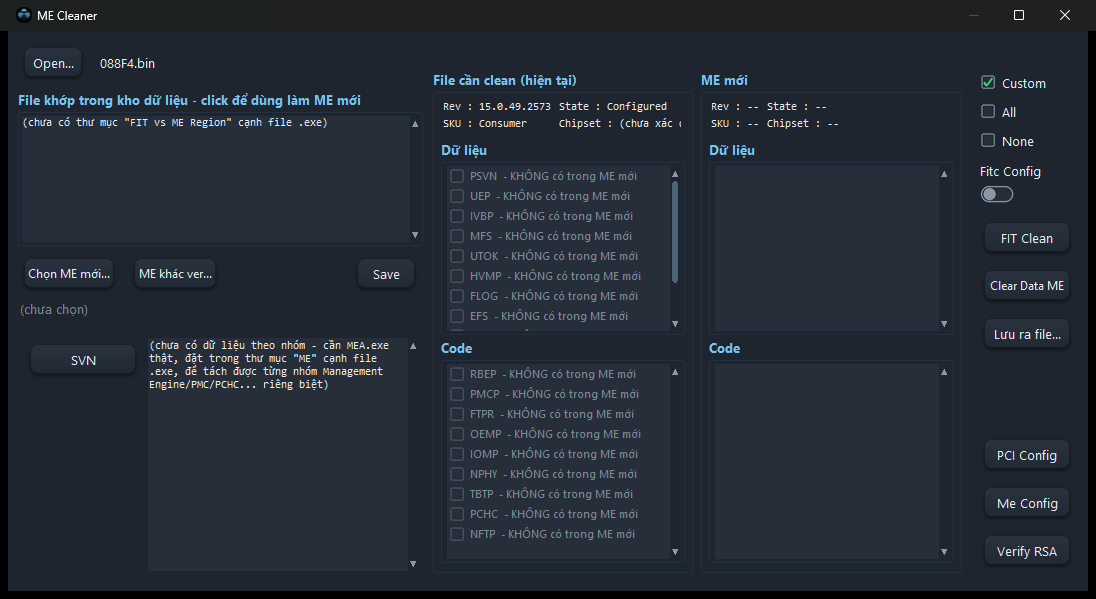 12345678910111213141516
- 1Mở file BIOS cần làm sạch ME (mặc định lấy file ở cửa sổ chính).
- 2Danh sách ME sạch cùng SKU trong kho. Bấm một dòng để dùng làm ME mới.
- 3Chọn file ME sạch từ máy (không nhận nguyên dump).
- 4Chọn ME cùng SKU nhưng khác phiên bản.
- 5Lưu ME đang chọn vào kho ME với tên chuẩn.
- 6Hiện số SVN/ARB của ME để so hai bản.
- 7File cần clean: partition Dữ liệu và Code hiện có. Tick cái cần thay.
- 8ME mới: partition của ME sạch đã chọn.
- 9Custom / All / None: chọn nhanh partition (Custom = bộ thường dùng).
- 10Fitc Config: gạt phải để giữ cấu hình ME của máy gốc.
- 11Dựng lại ME bằng Intel FIT. Có nút Add Fit Tools để thêm bản FIT.
- 12Ghi các partition đã tick và lưu file.
- 13Lưu lại file đang mở.
- 14Chỉnh cổng SSD, combo SATA/PCIe; Driver SSD theo BIOS tham khảo.
- 15Xem và sửa thiết lập ME (EOM, PTT, AMT…), kiểm tra lại bằng FIT.
- 16Kiểm tra chữ ký từng partition ME.
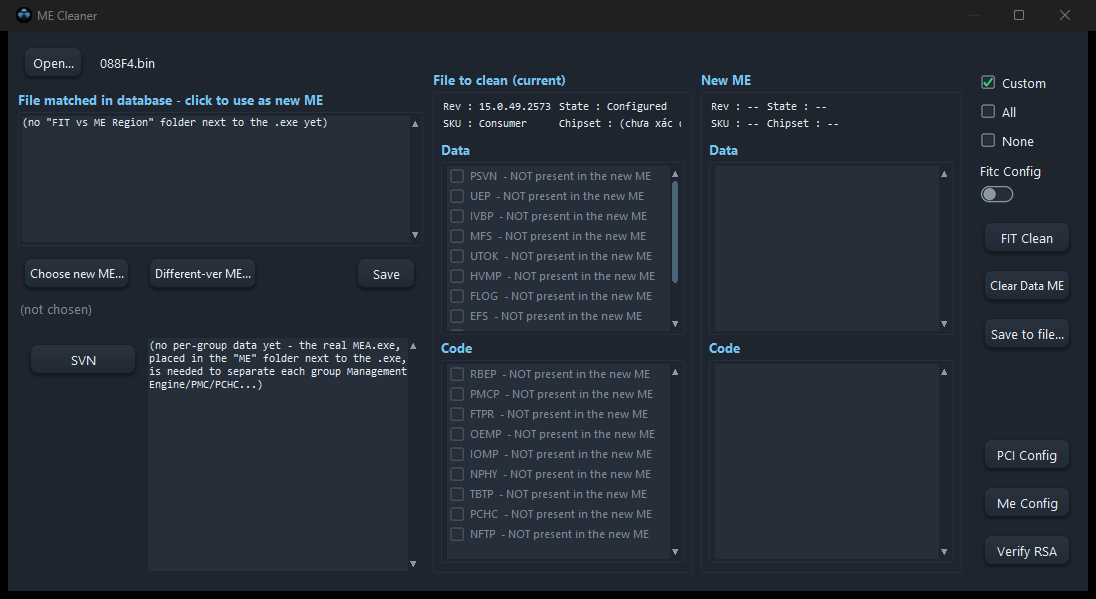 12345678910111213141516
- 1Opens the BIOS to clean (defaults to the main window file).
- 2Clean MEs of the same SKU from the store. Click one to use it.
- 3Pick a clean ME file (full dumps are refused).
- 4Pick an ME of the same SKU but another version.
- 5Stores the selected ME in the ME store with a standard name.
- 6Shows ME SVN/ARB numbers to compare two images.
- 7File to clean: current Data and Code partitions. Tick what to replace.
- 8New ME: partitions of the chosen clean ME.
- 9Custom / All / None: quick selection (Custom = the usual set).
- 10Fitc Config: switch right to keep the original machine ME configuration.
- 11Rebuilds the ME with Intel FIT. Add Fit Tools adds FIT versions.
- 12Writes the ticked partitions and saves.
- 13Saves the open file.
- 14SSD ports, SATA/PCIe combo; SSD drivers from a reference BIOS.
- 15View and change ME settings (EOM, PTT, AMT…), verified with FIT.
- 16Checks the signature of every ME partition.
Fix Tool
Nút Fix Tool cạnh khung Bios Info. Mở file, xem khung Me báo tình trạng và nhãn Production / Pre-Production, rồi chọn việc cần sửa:
The Fix Tool button next to the Bios Info panel. Open a file, read the Me box (status and Production / Pre-Production label), then choose what to fix:
- TPM (bật/tắt PTT), Audio, Wifi, SSD, chọn điện áp 1.8V / 3.3V, Disable Me.
- Auto Fix Me: tự sửa ME hỏng bằng kho ME.
- EFS Fix, Verify RSA.
- TPM (enable/disable PTT), Audio, Wifi, SSD, 1.8V / 3.3V, Disable Me.
- Auto Fix Me: repairs a damaged ME from the ME store.
- EFS Fix, Verify RSA.
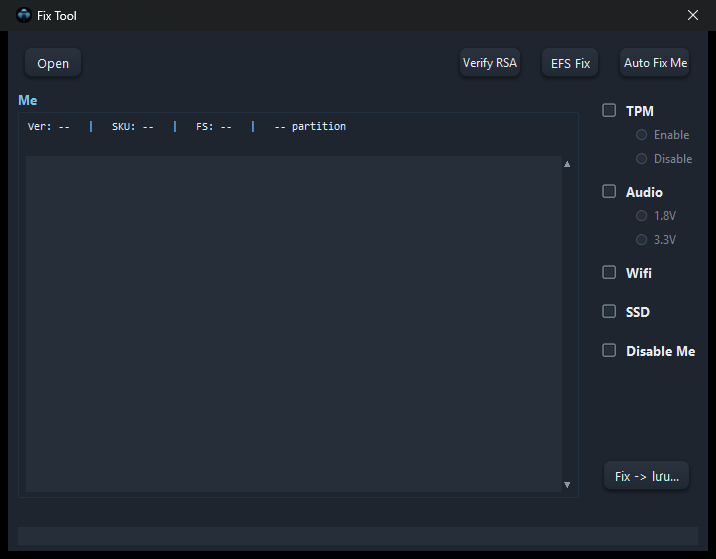 1234567891011
- 1Mở file BIOS cần sửa.
- 2Kiểm tra chữ ký ME, kết quả hiện trong khung Me.
- 3Sửa lỗi phân vùng EFS của ME.
- 4Tự sửa ME hỏng bằng ME sạch trong kho.
- 5Khung Me: phiên bản, SKU, trạng thái, danh sách partition (lỗi tô đỏ).
- 6Bật (Enable) hoặc tắt (Disable) TPM trong ME (PTT).
- 7Sửa mất âm thanh; chọn điện áp 1.8V hoặc 3.3V.
- 8Bổ sung phần Wifi bị thiếu trong ME.
- 9Bổ sung phần SSD bị thiếu trong ME.
- 10Tắt ME.
- 11Thực hiện các ô đã tick và lưu file mới.
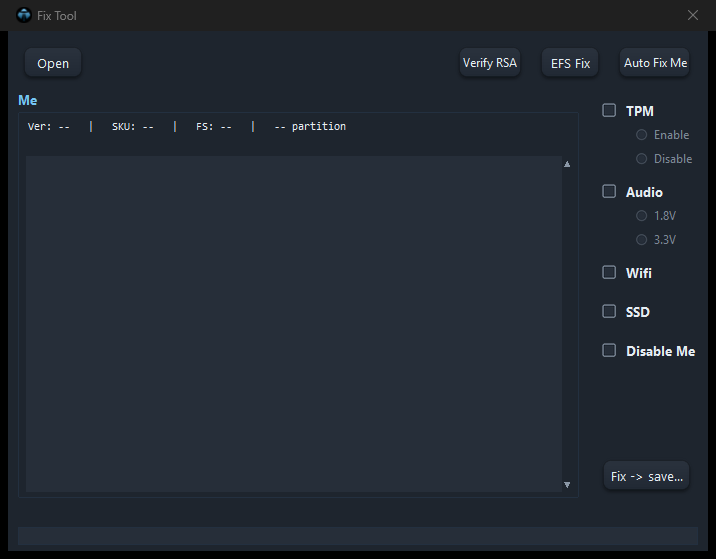 1234567891011
- 1Opens the BIOS to fix.
- 2Checks ME signatures; result shows in the Me box.
- 3Fixes the ME EFS partition.
- 4Repairs a damaged ME from the ME store.
- 5Me box: version, SKU, state, partitions (errors in red).
- 6Enables or disables TPM in the ME (PTT).
- 7Fixes missing audio; choose 1.8V or 3.3V.
- 8Restores missing Wifi parts in the ME.
- 9Restores missing SSD parts in the ME.
- 10Disables the ME.
- 11Runs the ticked fixes and saves a new file.
Bios Extract
Tách gói update của hãng thành file BIOS/ME/EC dùng được: Dell, HP, Lenovo, Asus, Acer, Panasonic, Surface extract, EC extract (lấy firmware EC từ dump hoặc gói) và UEFI Extract (các định dạng khác: Phoenix, Toshiba, Fujitsu, VAIO, Apple…).
Unpacks vendor update packages into usable BIOS/ME/EC files: Dell, HP, Lenovo, Asus, Acer, Panasonic, Surface extract, EC extract (EC firmware from a dump or package) and UEFI Extract (other formats: Phoenix, Toshiba, Fujitsu, VAIO, Apple…).
Kéo gói vào cửa sổ, kết quả nằm trong thư mục mới cạnh gói.
Drop the package on the window; results go to a new folder next to it.
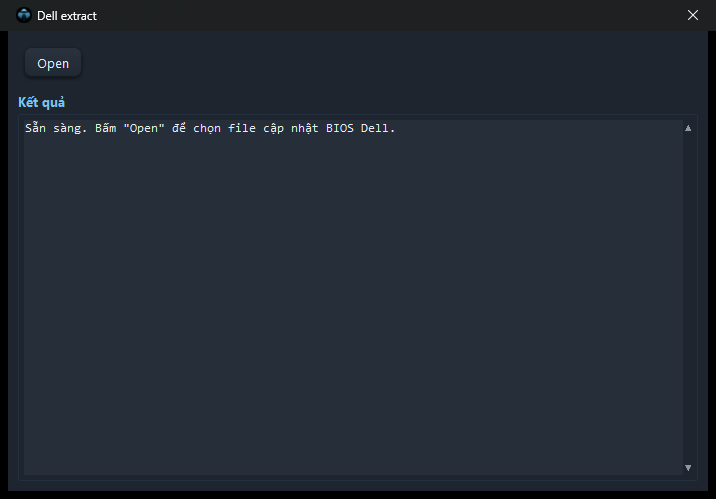 12
12- 1Chọn gói Dell (.exe, .hdr, .rcv) hoặc kéo thả vào cửa sổ.
- 2Kết quả: danh sách file tách được, lưu trong thư mục cạnh gói.
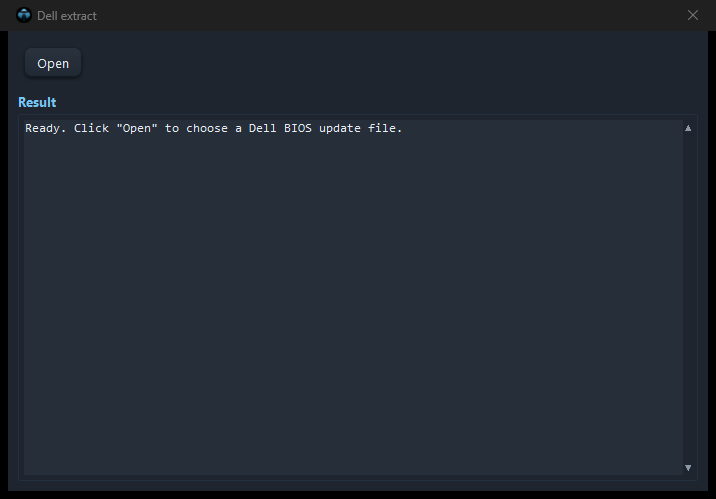 12
12- 1Pick a Dell package (.exe, .hdr, .rcv) or drop it on the window.
- 2Result: unpacked files, saved in a folder next to the package.
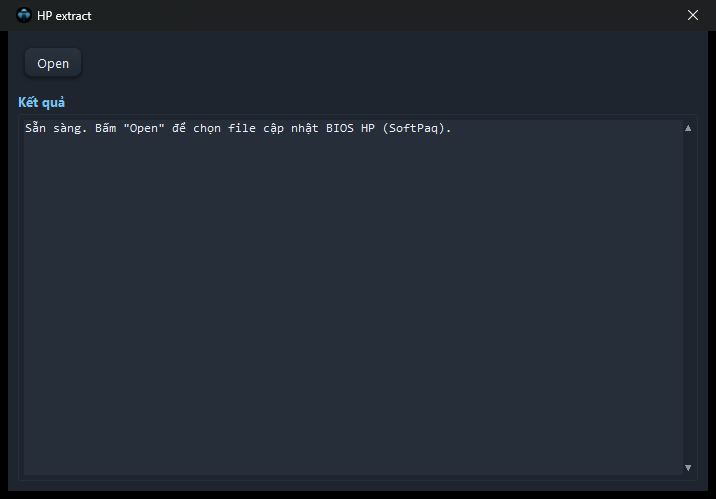 12
12- 1Chọn gói SoftPaq của HP (spXXXXX.exe).
- 2Kết quả: BIOS Region, ME và các file tên theo HP.
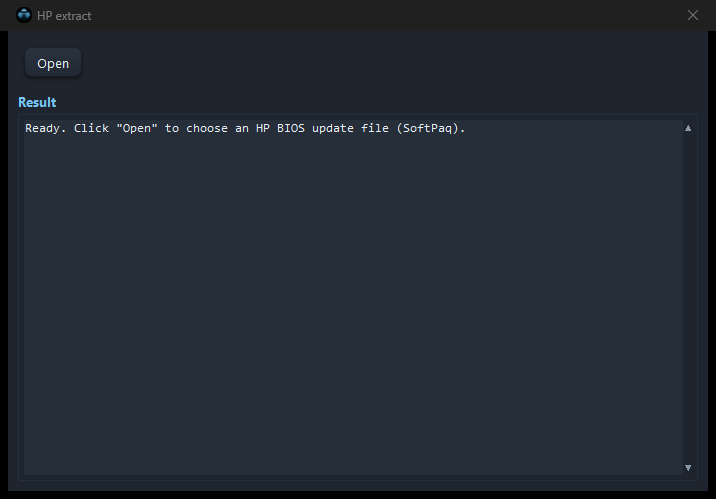 12
12- 1Pick an HP SoftPaq (spXXXXX.exe).
- 2Result: BIOS Region, ME and files named the HP way.
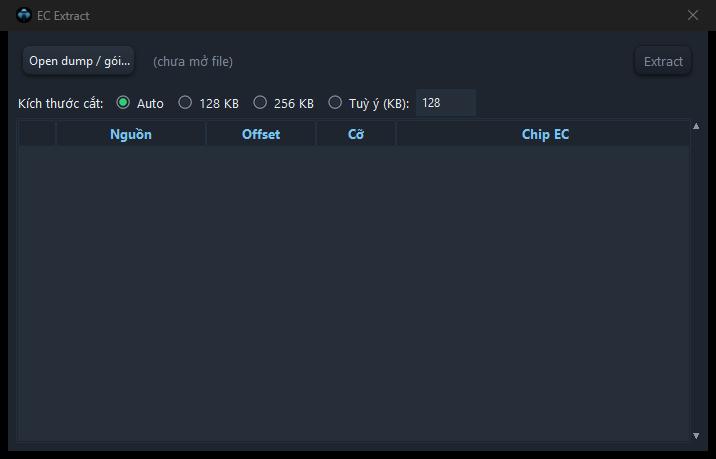 1234
1234- 1Mở dump hoặc gói update để tìm firmware EC.
- 2Kích thước cắt: Auto (theo firmware), 128 KB, 256 KB hoặc tự nhập.
- 3Danh sách EC tìm thấy, tick cái cần lấy.
- 4Lưu các EC đã tick.
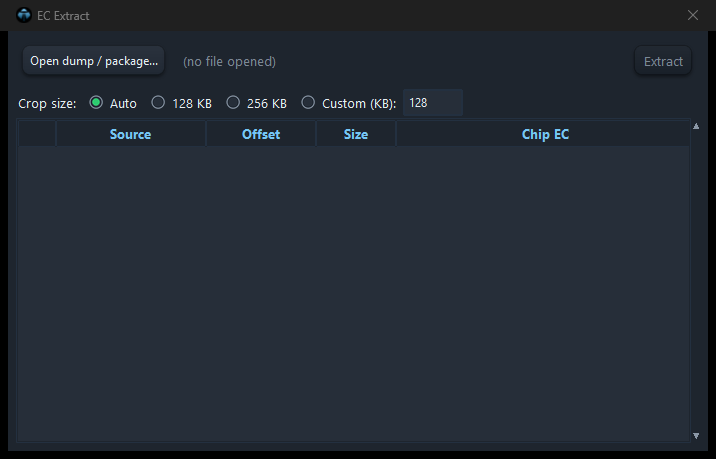 1234
1234- 1Opens a dump or package to find EC firmware.
- 2Cut size: Auto (from the firmware), 128 KB, 256 KB or custom.
- 3EC images found; tick the ones to save.
- 4Saves the ticked EC images.
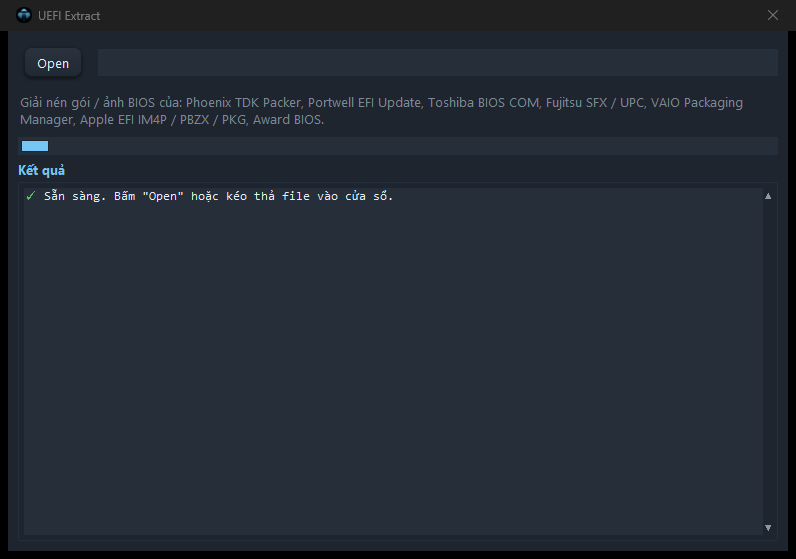 12
12- 1Chọn gói định dạng khác: Phoenix, Toshiba, Fujitsu, VAIO, Apple, Award…
- 2Kết quả tách.
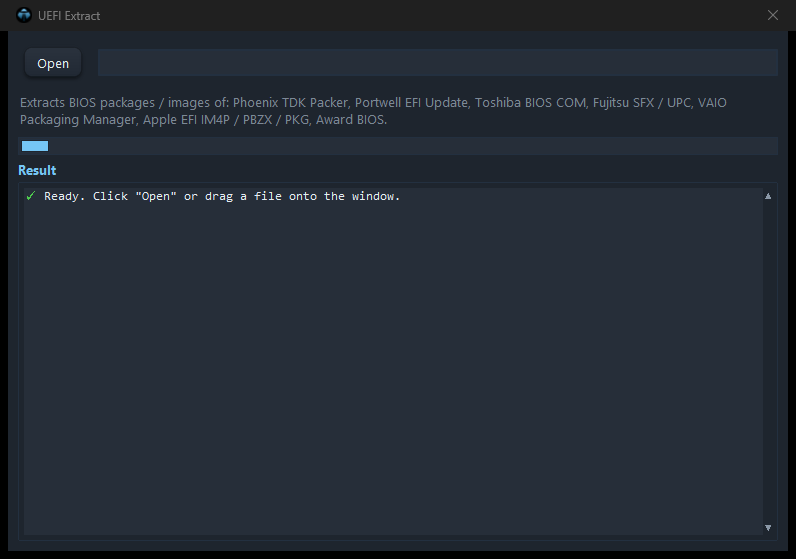 12
12- 1Pick other formats: Phoenix, Toshiba, Fujitsu, VAIO, Apple, Award…
- 2Unpack result.
Unlock
| MụcItem | Dùng đểUsed for |
|---|---|
| General Unlock | Gỡ mật khẩu BIOS đa hãng (tự nhận Acer, Asus, Lenovo hoặc reset NVRAM).Multi-vendor BIOS password removal (auto Acer, Asus, Lenovo or NVRAM reset). |
| Password Scan | Tìm vùng chứa mật khẩu, chọn để xoá.Finds password areas, select to wipe. |
| Computrace | Tắt Computrace/Absolute, Autopilot, reset NVRAM.Disables Computrace/Absolute, Autopilot, NVRAM reset. |
| Dell PSW | Tạo mật khẩu master cho dòng Dell đời cũ.Master password for older Dell models. |
| Dell 8CF8-9ABE | Mở khoá Dell đời mới theo các ô chọn, bấm Patch.Newer Dell unlock by ticked steps, press Patch. |
| Dell Pro Unlock | Unlock New Dell 8CF8-1B58.Unlock New Dell 8CF8-1B58. |
| Lenovo Patch | Unlock Lenovo Gen 1 - Gen 8.Unlock Lenovo Gen 1 - Gen 8. |
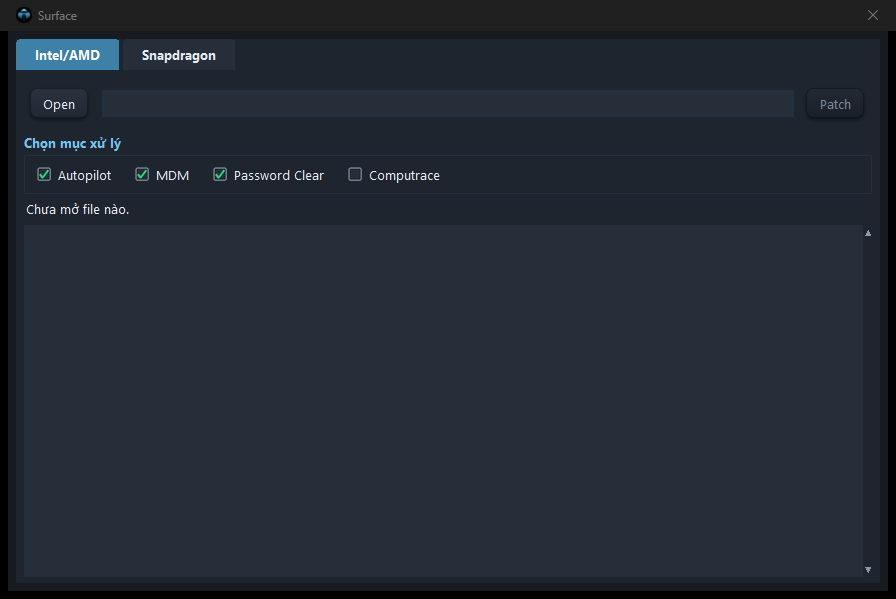
| Surface | Gỡ Autopilot, MDM/DFCI, mật khẩu, Computrace.Removes Autopilot, MDM/DFCI, password, Computrace. |
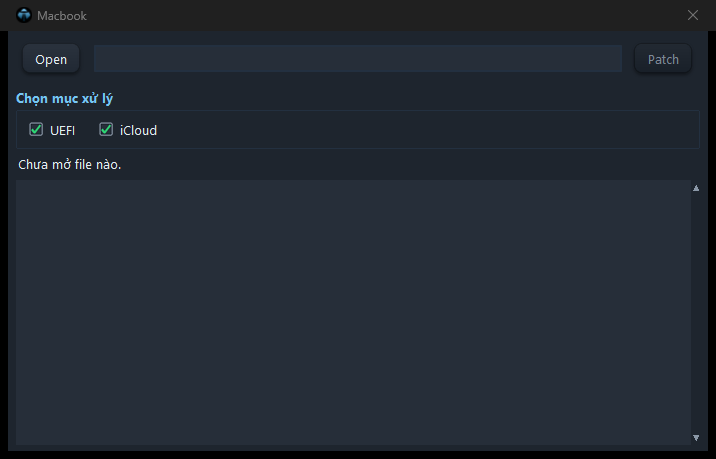
| Macbook | Gỡ mật khẩu EFI và khoá iCloud (Intel).Removes EFI password and iCloud lock (Intel). |
| Snapdragon | Unlock Snapdragon.Unlock Snapdragon. |
Mỗi cửa sổ: mở file, tick việc cần làm, bấm Patch. File lưu ra có đuôi _patch hoặc _unlock.
In each window: open the file, tick what to do, press Patch. The output ends with _patch or _unlock.
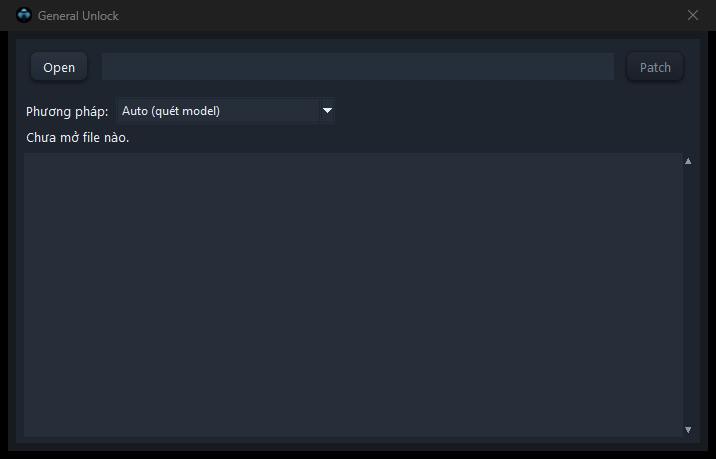 1234
1234- 1Mở file BIOS bị khoá.
- 2Phương pháp: Auto (tự nhận model) hoặc chọn theo hãng.
- 3Gỡ mật khẩu và lưu file _unlock.
- 4Kết quả.
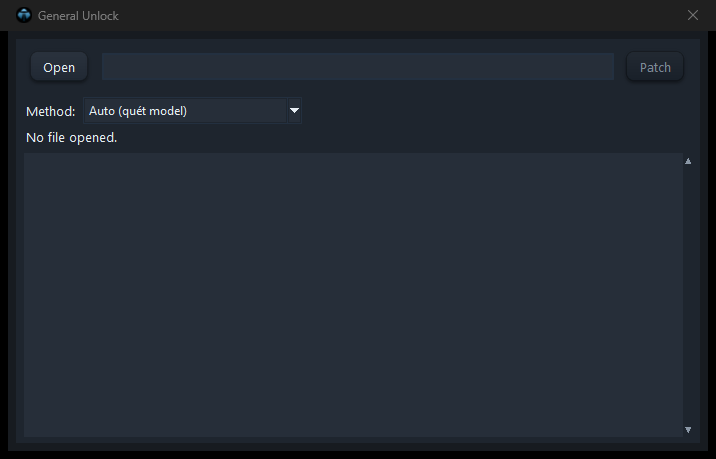 1234
1234- 1Opens the locked BIOS.
- 2Method: Auto (detects the model) or a specific vendor.
- 3Removes the password and saves _unlock.
- 4Result.
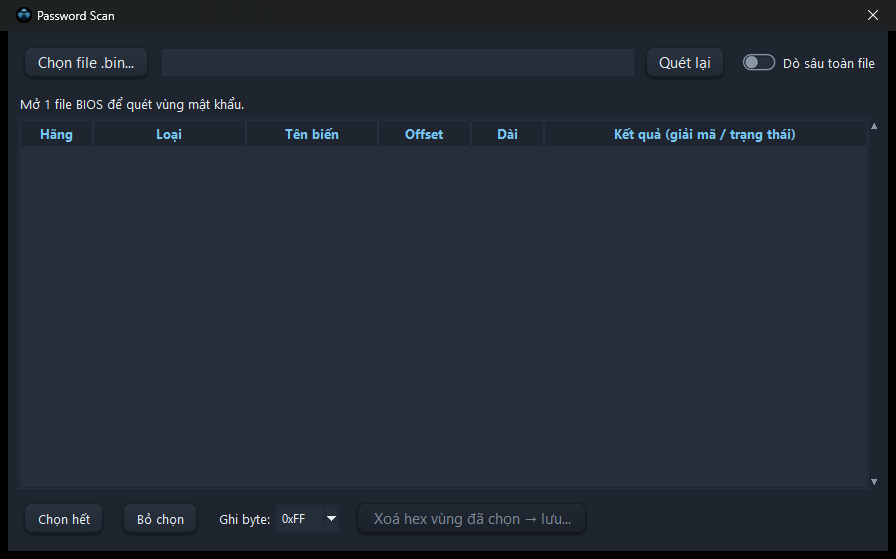 1234567
- 1Mở file BIOS để quét vùng mật khẩu.
- 2Quét lại file đang mở.
- 3Dò sâu toàn file (chậm hơn, tìm kỹ hơn).
- 4Danh sách vùng mật khẩu tìm thấy.
- 5Chọn hết / Bỏ chọn các dòng.
- 6Byte ghi vào vùng đã chọn (thường 0xFF).
- 7Xoá vùng đã chọn rồi lưu file mới.
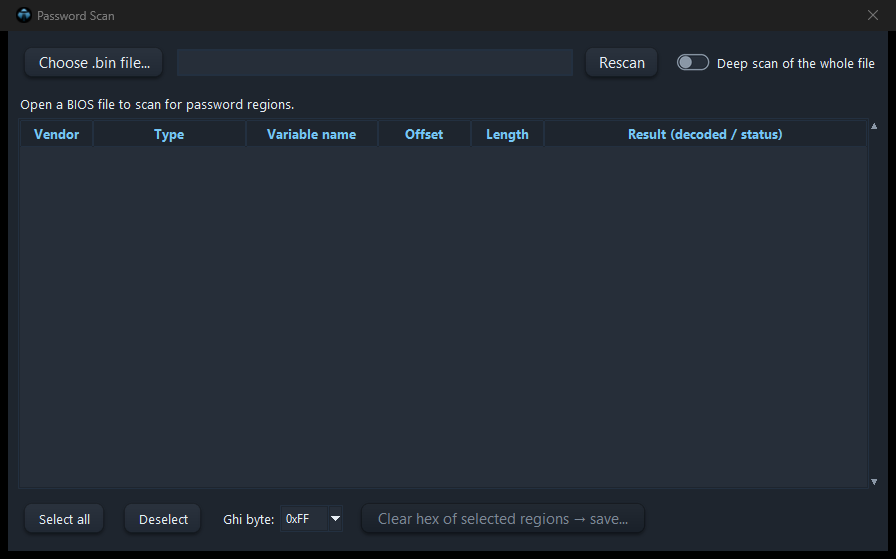 1234567
- 1Opens a BIOS to scan password areas.
- 2Rescans the open file.
- 3Deep scan of the whole file (slower, more thorough).
- 4Password areas found.
- 5Select all / clear selection.
- 6Byte written to the selected areas (usually 0xFF).
- 7Wipes the selected areas and saves a new file.
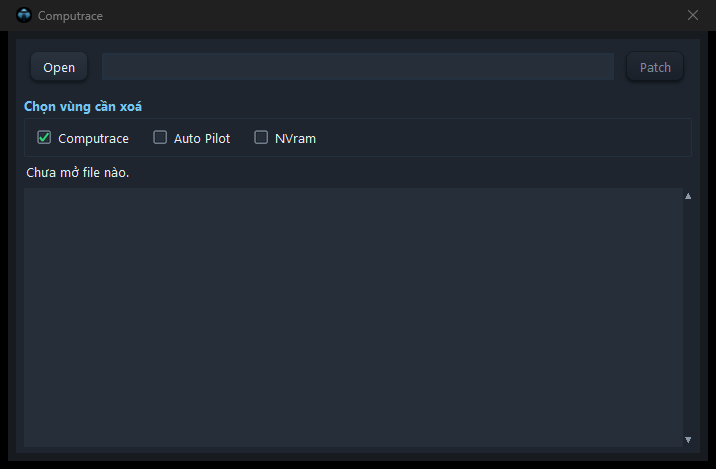 1234
1234- 1Mở file BIOS.
- 2Chọn việc: tắt Computrace/Absolute, Auto Pilot, reset NVRAM.
- 3Thực hiện và lưu file _patch.
- 4Kết quả và danh sách module Absolute có trong BIOS.
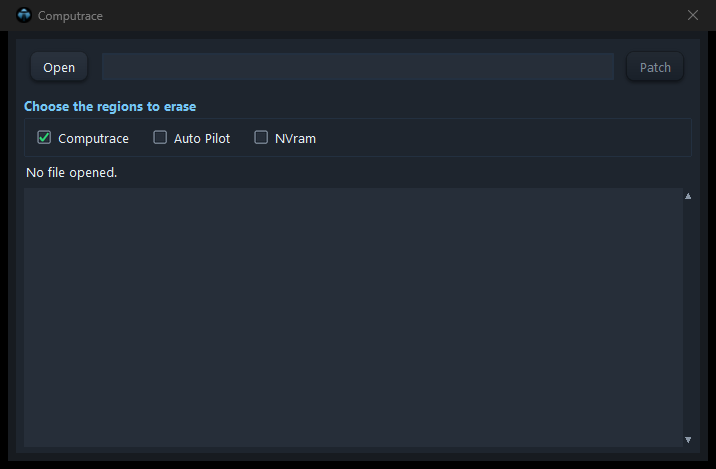 1234
1234- 1Opens the BIOS.
- 2Choose: disable Computrace/Absolute, Auto Pilot, NVRAM reset.
- 3Runs and saves _patch.
- 4Result and Absolute modules found in the BIOS.
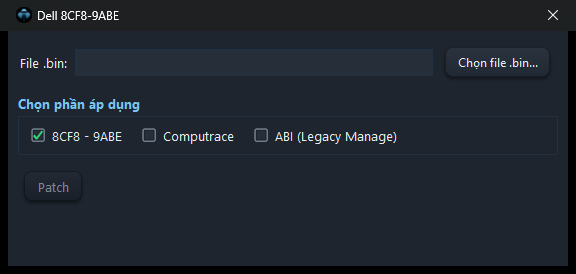 123
123- 1Mở file BIOS Dell.
- 2Chọn phần áp dụng: 8CF8-9ABE, Computrace, ABI (Legacy Manage).
- 3Thực hiện và lưu; kết quả hiện ngay dưới nút.
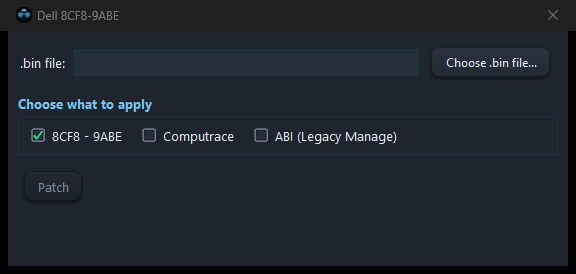 123
123- 1Opens the Dell BIOS.
- 2Choose: 8CF8-9ABE, Computrace, ABI (Legacy Manage).
- 3Runs and saves; the result shows under the button.
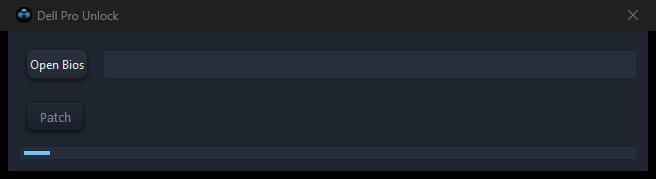 12
12- 1Mở file BIOS Dell Pro.
- 2Vá và lưu file mới.
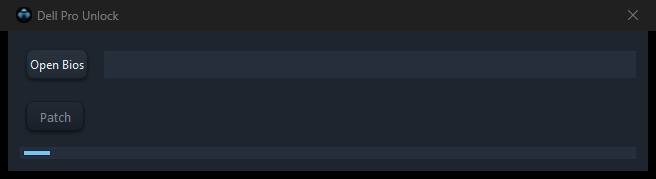 12
12- 1Opens the Dell Pro BIOS.
- 2Patches and saves a new file.
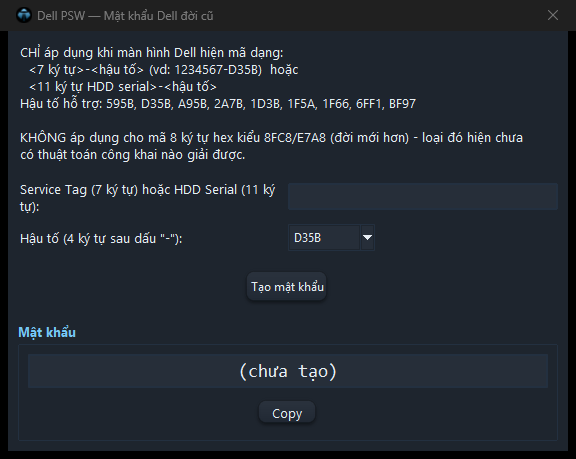 12345
12345- 1Các dạng mã hiện trên màn hình Dell được hỗ trợ.
- 2Nhập Service Tag (7 ký tự) hoặc HDD Serial (11 ký tự).
- 3Chọn hậu tố sau dấu "-".
- 4Tạo mật khẩu master.
- 5Copy mật khẩu.
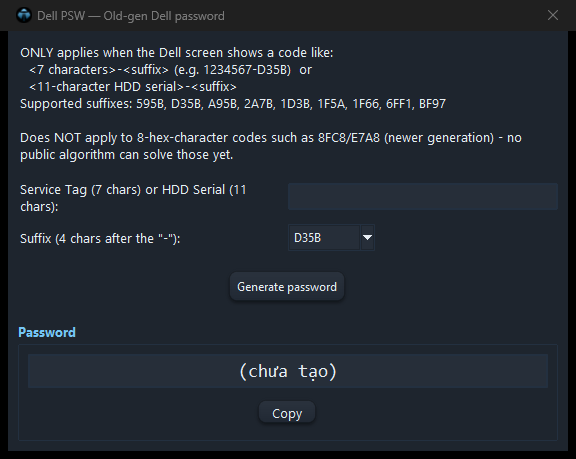 12345
12345- 1Supported Dell screen code formats.
- 2Enter the Service Tag (7 chars) or HDD serial (11 chars).
- 3Pick the suffix after "-".
- 4Generates the master password.
- 5Copies the password.
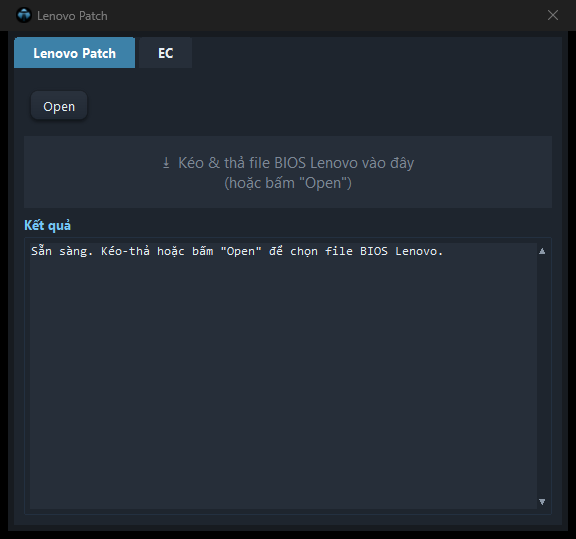 123
123- 1Tab Lenovo Patch (BIOS) và EC.
- 2Mở file BIOS Lenovo hoặc kéo thả vào khung.
- 3Kết quả và hướng dẫn dùng file _PATCHED.
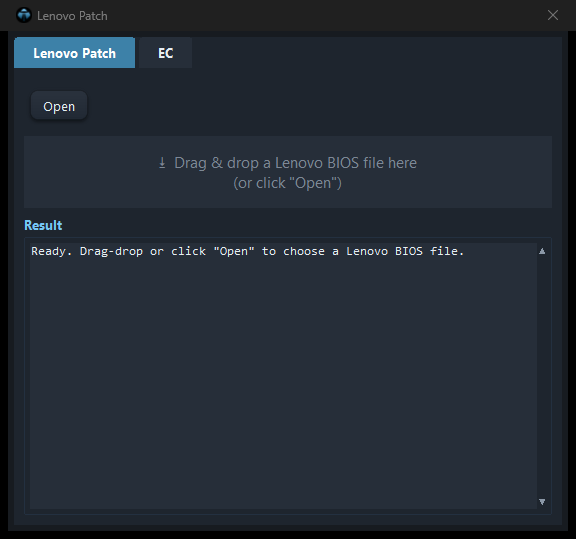 123
123- 1Lenovo Patch (BIOS) and EC tabs.
- 2Opens a Lenovo BIOS or drop it on the box.
- 3Result and how to use the _PATCHED file.
 1234
1234- 1Tab Intel/AMD và Snapdragon.
- 2Mở file BIOS Surface.
- 3Chọn việc: Autopilot, MDM, Password Clear, Computrace.
- 4Thực hiện và lưu file _patch.
 1234
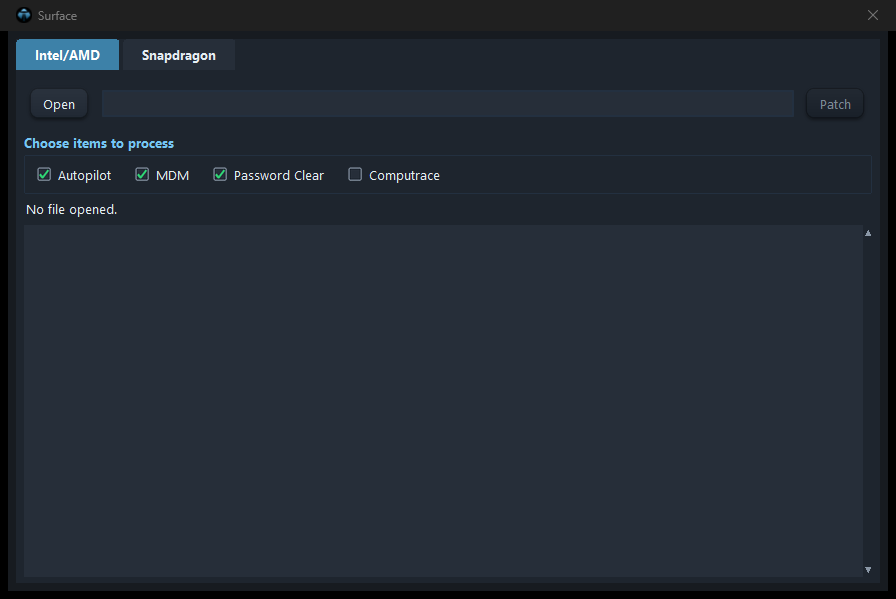
1234- 1Intel/AMD and Snapdragon tabs.
- 2Opens the Surface BIOS.
- 3Choose: Autopilot, MDM, Password Clear, Computrace.
- 4Runs and saves _patch.
 123
123- 1Mở file EFI của MacBook (Intel).
- 2Gỡ mật khẩu UEFI và/hoặc khoá iCloud.
- 3Thực hiện và lưu file _patch.
 123
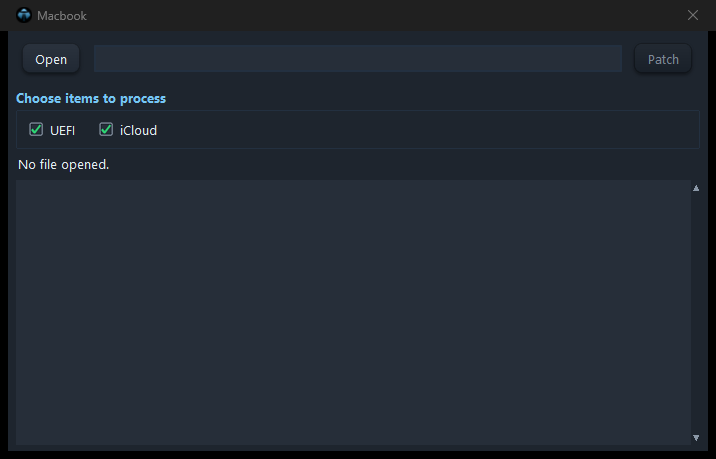
123- 1Opens the MacBook (Intel) EFI file.
- 2Removes the UEFI password and/or iCloud lock.
- 3Runs and saves _patch.
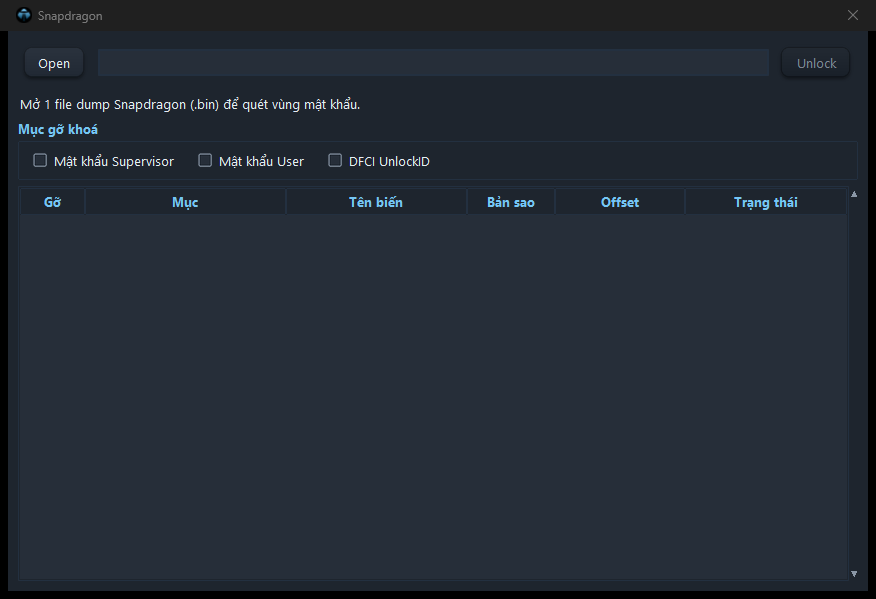 1234
1234- 1Mở dump Snapdragon (.bin).
- 2Chọn mục gỡ: mật khẩu Supervisor, User, DFCI UnlockID.
- 3Danh sách mục khoá tìm thấy.
- 4Gỡ và lưu file mới.
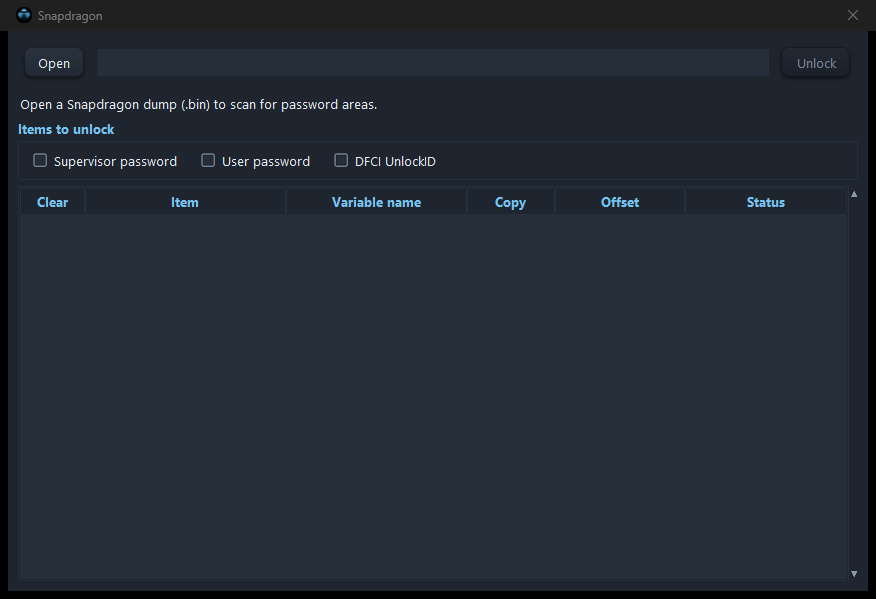 1234
1234- 1Opens a Snapdragon dump (.bin).
- 2Choose: Supervisor password, User password, DFCI UnlockID.
- 3Lock items found.
- 4Unlocks and saves a new file.
Tools
- DMI: chuyển thông tin máy (Serial, Model, UUID, MAC, Windows Key…) từ file nguồn sang file đích; tab sửa Serial/Service Tag và MAC LAN; tab Windows Key; tab Logo.
- UEFI Trans: kéo thả module giữa hai file BIOS.
- Disable Ram: tắt RAM hàn trên main để máy chạy bằng RAM khe cắm.
- Chromebook: dựng BIOS UEFI cho Chromebook từ dump máy, tải ROM ngay trong cửa sổ.
- VGA Setup: chỉnh các thiết lập card đồ hoạ (chế độ hiển thị, bộ nhớ đồ hoạ…), bấm Patch.
- DMI: transfers machine identity (Serial, Model, UUID, MAC, Windows Key…) from a source file to a target; tabs to edit Serial/Service Tag and LAN MAC, Windows Key, Logo.
- UEFI Trans: drag modules between two BIOS files.
- Disable Ram: disables soldered RAM so the machine runs on the slot.
- Chromebook: builds a UEFI BIOS for a Chromebook from its dump; downloads the ROM in the window.
- VGA Setup: graphics settings (display mode, graphics memory…), then Patch.
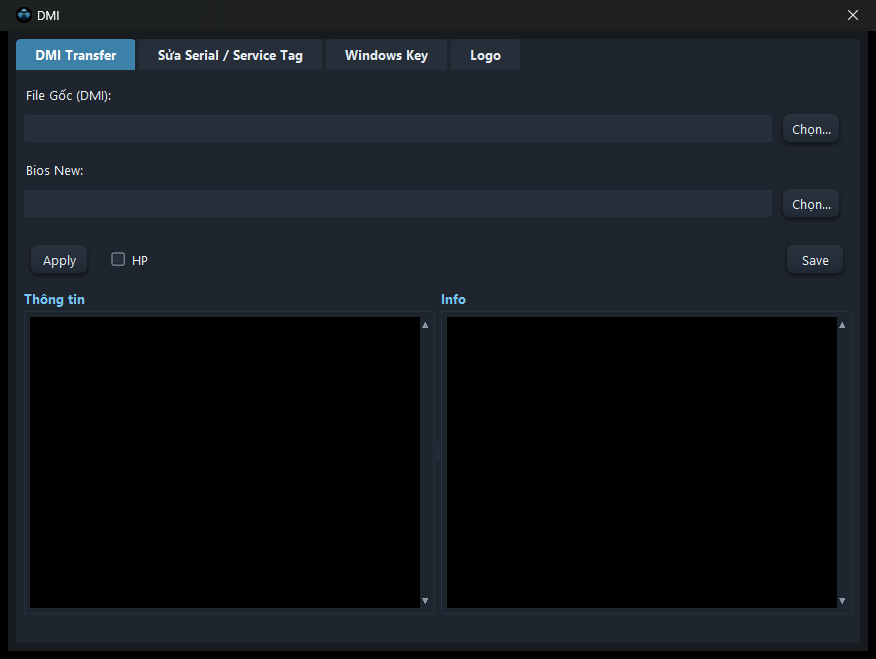 1234567
- 1Các tab: DMI Transfer, Sửa Serial / Service Tag, Windows Key, Logo.
- 2File Gốc: file còn đủ thông tin máy (nguồn).
- 3Bios New: file cần nhận thông tin (đích).
- 4Chuyển thông tin từ file gốc sang file đích.
- 5Tick với máy HP để chuyển cả biến HP.
- 6Lưu file đích.
- 7Thông tin file gốc và file đích để đối chiếu.
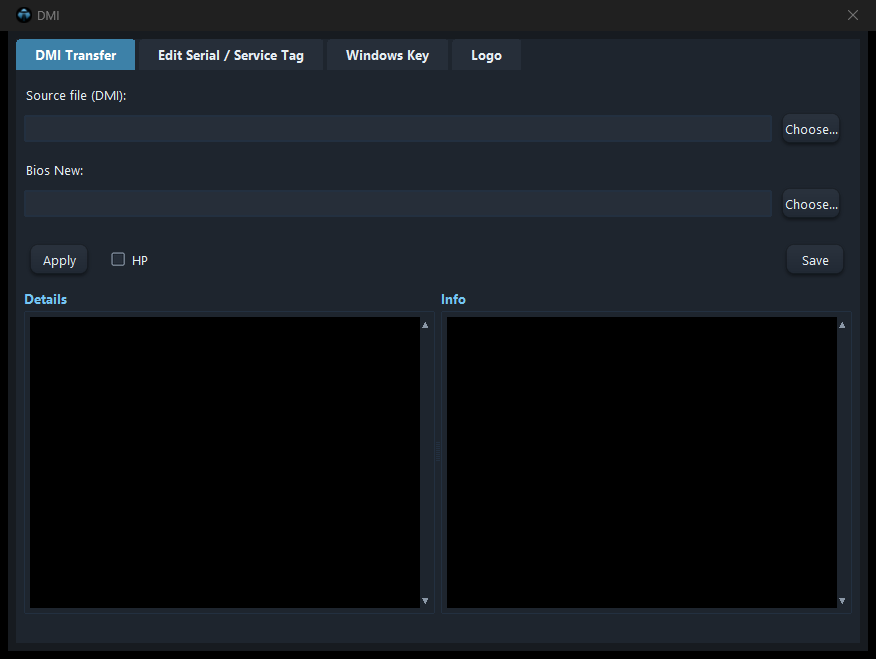 1234567
- 1Tabs: DMI Transfer, Edit Serial / Service Tag, Windows Key, Logo.
- 2Source file: the one that still has the machine info.
- 3Bios New: the file that receives the info (target).
- 4Transfers the info from source to target.
- 5Tick for HP machines to also transfer HP variables.
- 6Saves the target file.
- 7Info of source and target to compare.
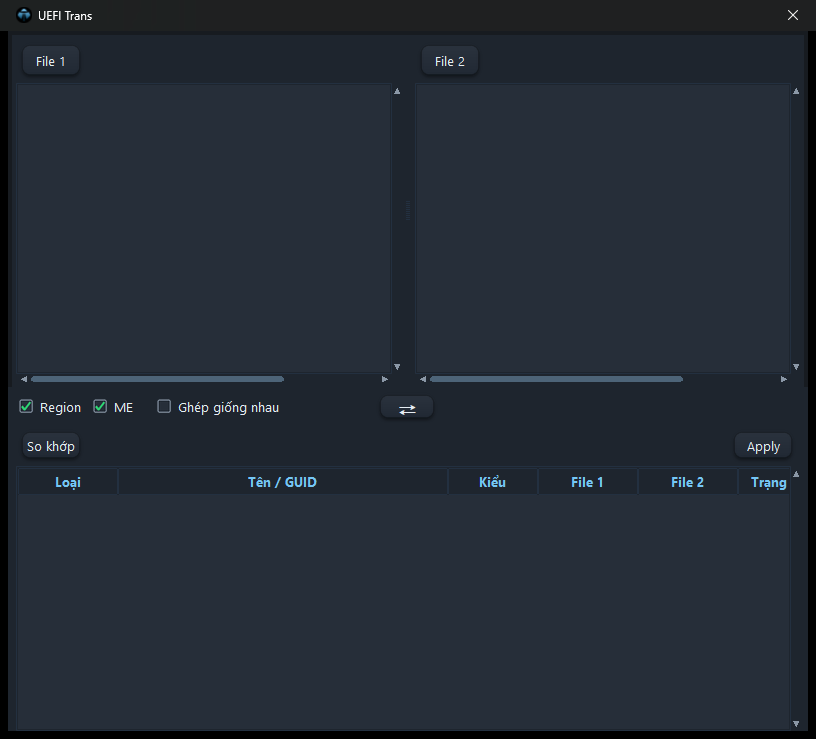 12345678
- 1Mở file thứ nhất.
- 2Mở file thứ hai.
- 3Cây hai file, kéo thả module từ bên này sang bên kia.
- 4So khớp theo vùng: Region, ME, ghép cả phần giống nhau.
- 5Đổi chiều nguồn và đích.
- 6Liệt kê phần khớp giữa hai file.
- 7Bảng phần khớp, tick cái cần chép.
- 8Chép phần đã tick và lưu.
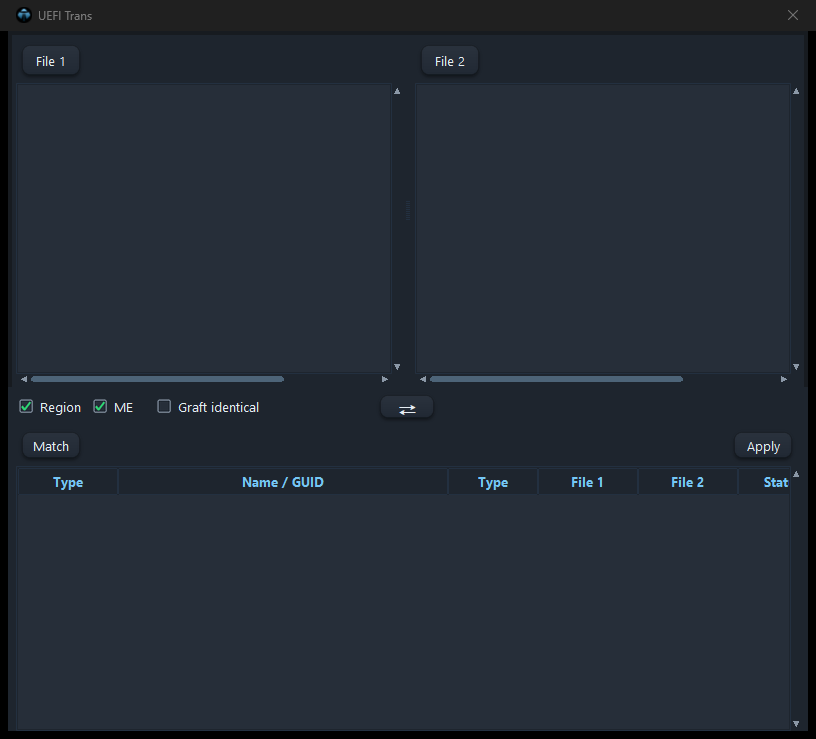 12345678
- 1Opens the first file.
- 2Opens the second file.
- 3Both trees; drag modules from one side to the other.
- 4Match by Region, ME, include identical parts.
- 5Swaps source and target.
- 6Lists matching parts.
- 7Match table; tick what to copy.
- 8Copies the ticked parts and saves.
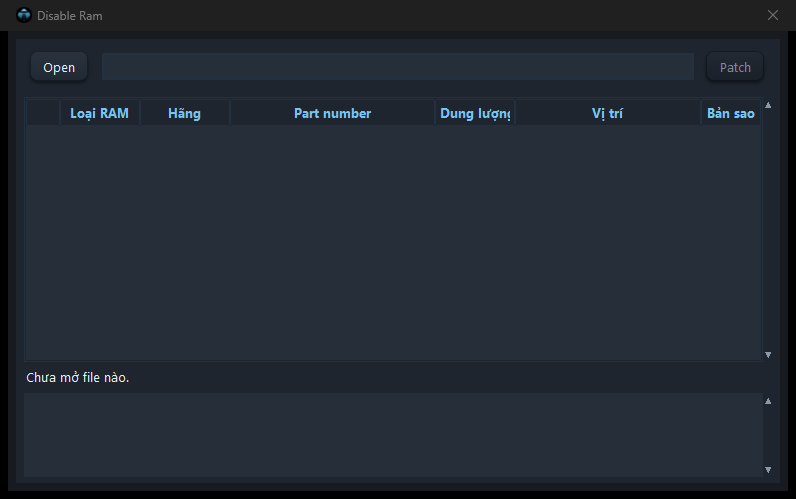 123
123- 1Mở file BIOS.
- 2Danh sách RAM hàn trên main tìm thấy, tick cái cần tắt.
- 3Tắt RAM đã tick và lưu.
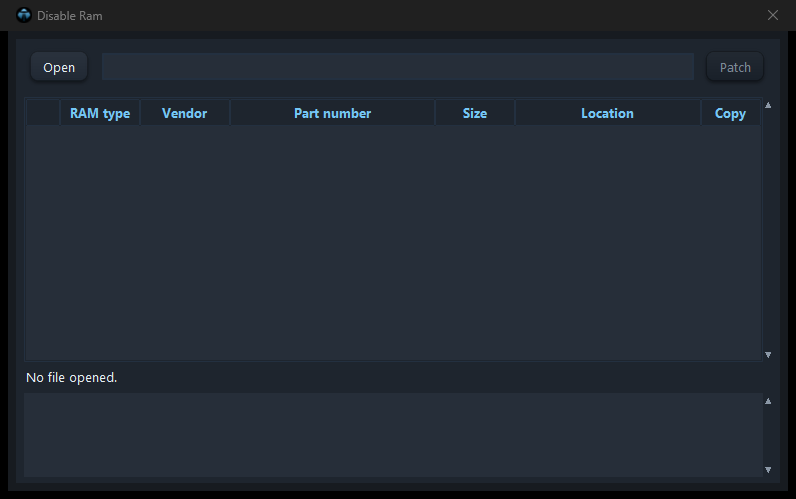 123
123- 1Opens the BIOS.
- 2Soldered RAM found; tick the ones to disable.
- 3Disables the ticked RAM and saves.
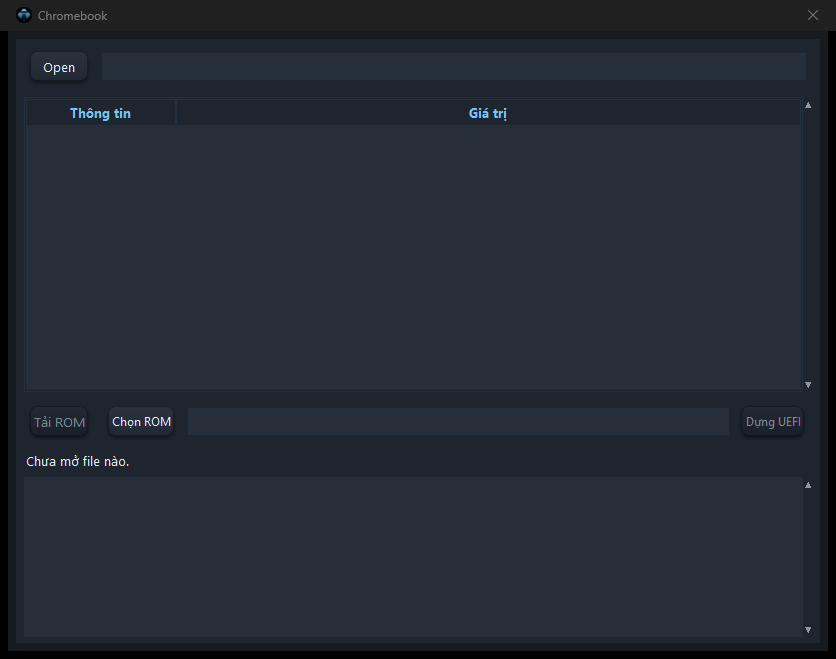 12345
12345- 1Mở dump Chromebook.
- 2Thông tin máy Chromebook.
- 3Tải ROM UEFI đúng model.
- 4Hoặc chọn ROM có sẵn.
- 5Dựng file BIOS UEFI và lưu.
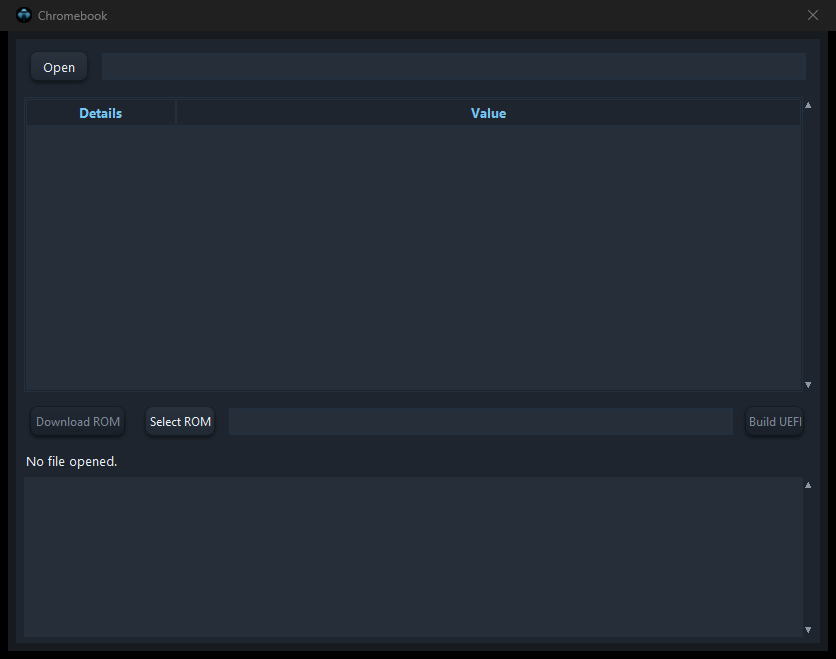 12345
12345- 1Opens the Chromebook dump.
- 2Chromebook info.
- 3Downloads the UEFI ROM for the model.
- 4Or pick a ROM you have.
- 5Builds the UEFI BIOS and saves.
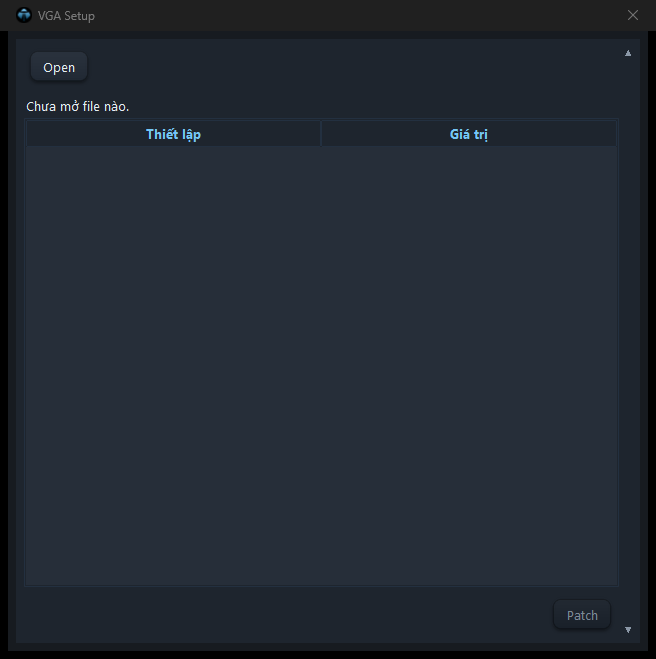 123
123- 1Mở file BIOS.
- 2Thiết lập đồ hoạ. Bấm vào cột Giá trị để đổi.
- 3Lưu file đã đổi.
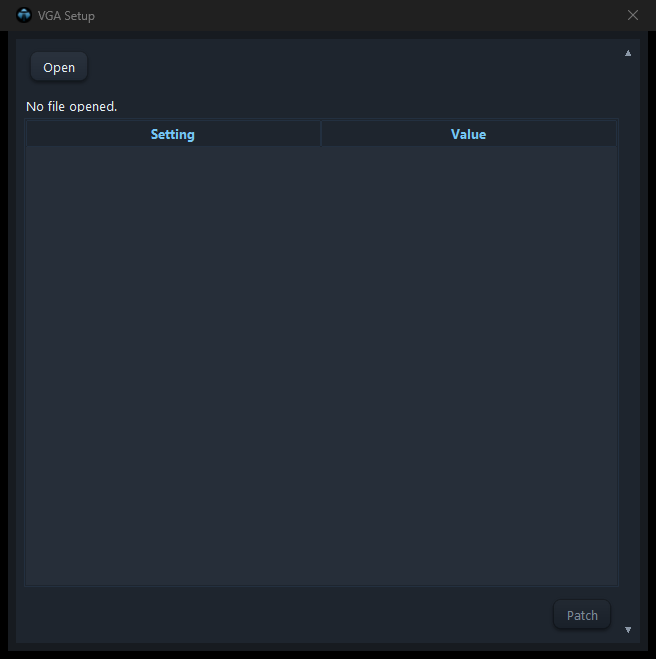 123
123- 1Opens the BIOS.
- 2Graphics settings. Click the Value column to change.
- 3Saves the changed file.
General
- Setup Var: xem và sửa option BIOS Setup; tab Dell sửa token Dell. Bấm Lưu vào .bin.
- MFS Explorer: duyệt và lấy file trong ME.
- NVRAM Vars: xem, sửa, bật/tắt biến NVRAM.
- Security Info: báo cáo khoá vùng flash, Boot Guard, Secure Boot, chip SPI.
- Setup Var: view and change BIOS Setup options; the Dell tab edits Dell tokens. Press Save to .bin.
- MFS Explorer: browse and extract files inside the ME.
- NVRAM Vars: view, edit, activate/deactivate NVRAM variables.
- Security Info: flash region locks, Boot Guard, Secure Boot, SPI chips.
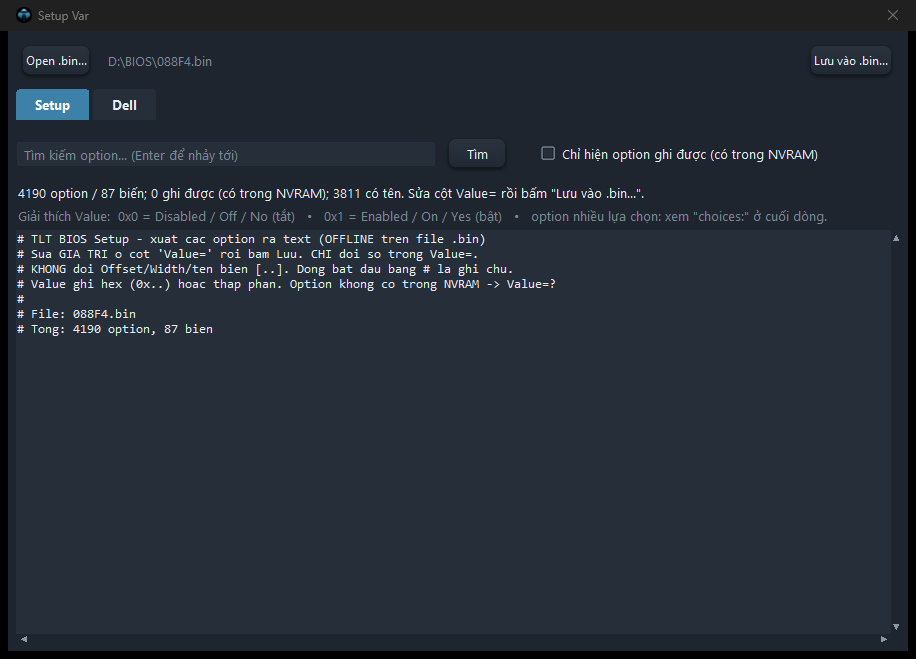 123456
- 1Mở file BIOS.
- 2Tab Setup (option BIOS) và Dell (token Dell).
- 3Tìm option theo tên.
- 4Chỉ hiện option ghi được.
- 5Danh sách option: sửa giá trị sau Value=.
- 6Lưu thay đổi vào file .bin.
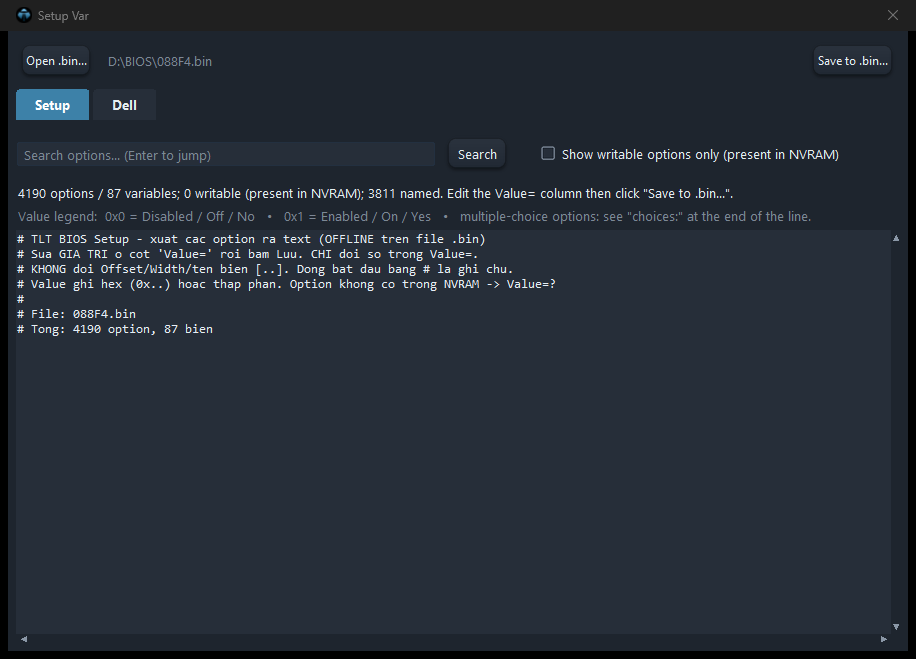 123456
- 1Opens the BIOS.
- 2Setup (BIOS options) and Dell (Dell tokens) tabs.
- 3Searches options by name.
- 4Shows only writable options.
- 5Option list: edit the value after Value=.
- 6Saves changes to the .bin.
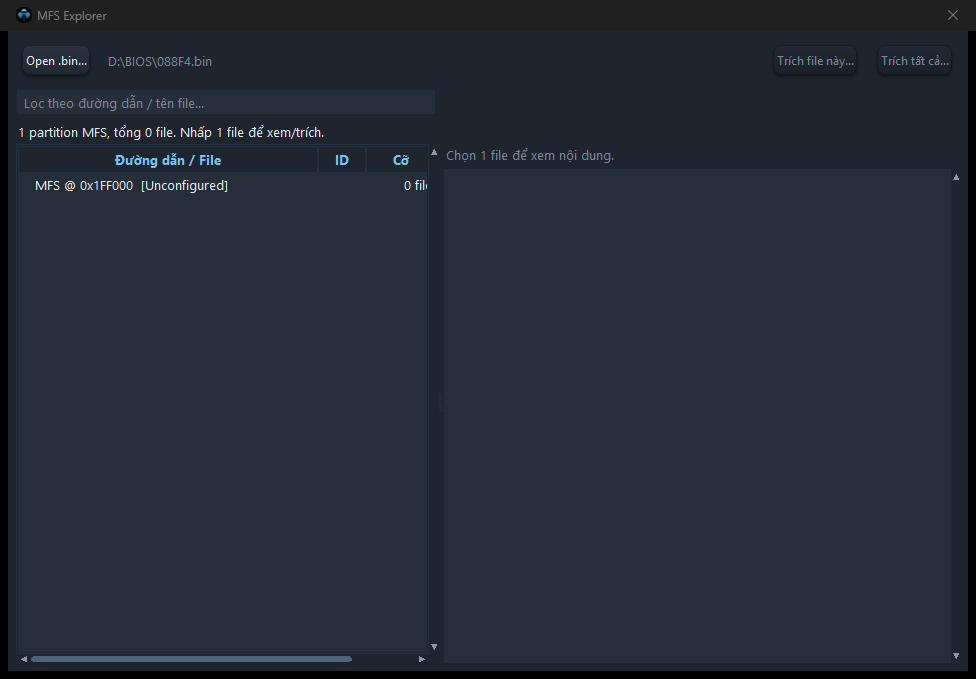 12345
12345- 1Mở file BIOS.
- 2Cây file trong ME.
- 3Nội dung file đang chọn.
- 4Lưu file đang chọn.
- 5Lưu toàn bộ file.
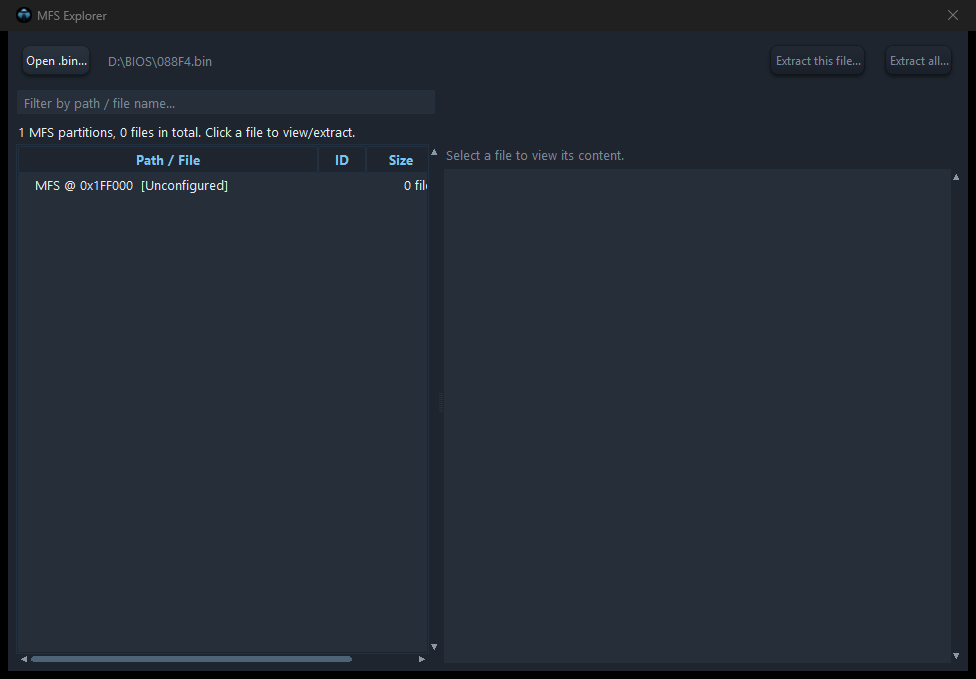 12345
12345- 1Opens the BIOS.
- 2File tree inside the ME.
- 3Content of the selected file.
- 4Saves the selected file.
- 5Saves all files.
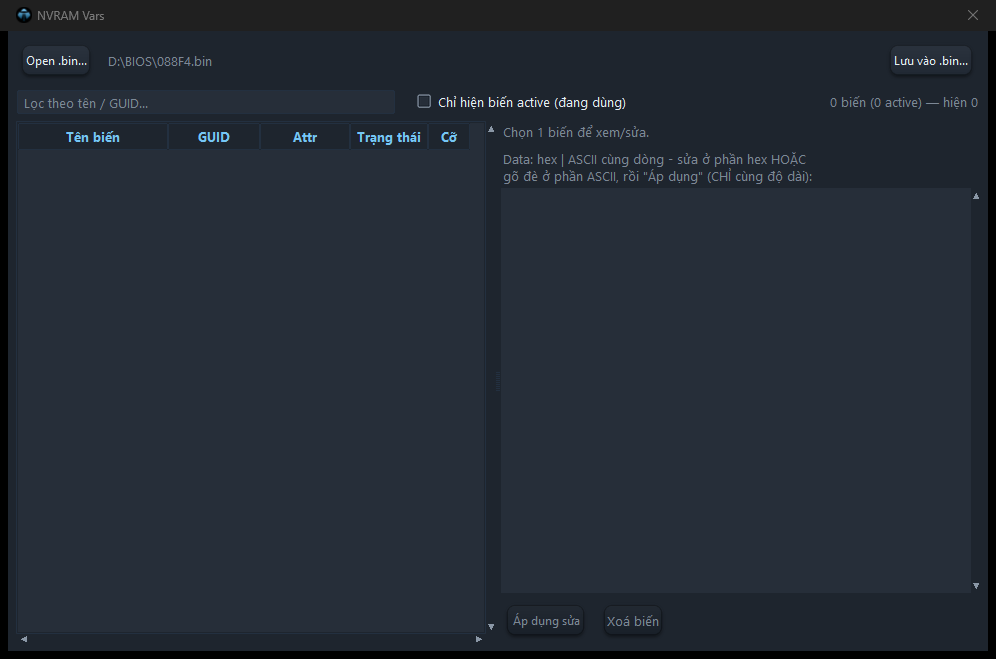 1234567
- 1Mở file BIOS.
- 2Chỉ hiện biến đang dùng.
- 3Danh sách biến NVRAM.
- 4Dữ liệu biến (hex | ASCII), sửa trực tiếp.
- 5Áp dụng chỉnh sửa.
- 6Xoá biến đang chọn.
- 7Lưu ra file .bin.
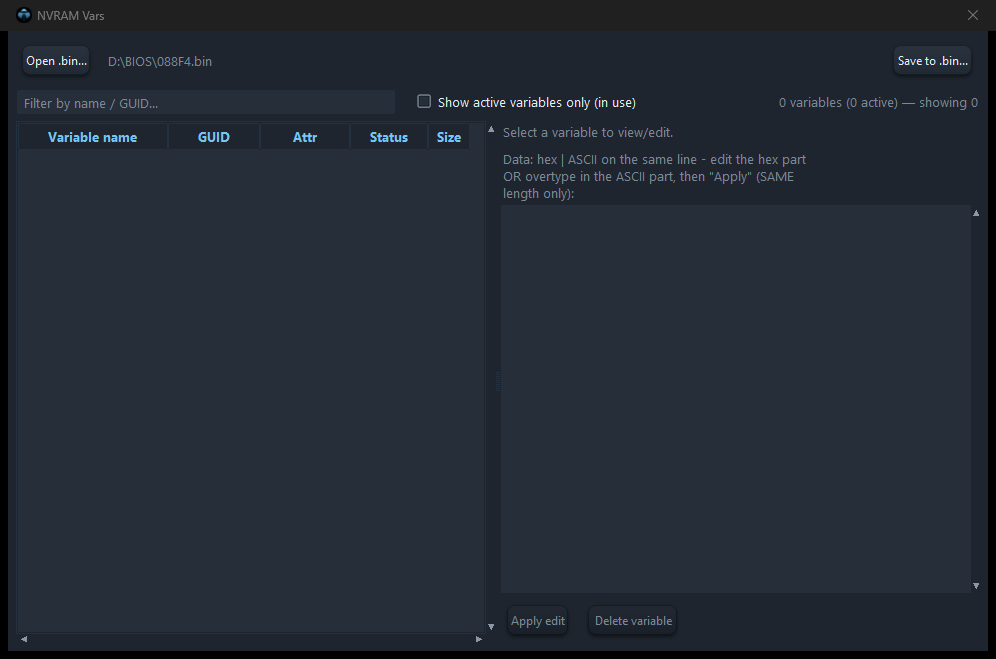 1234567
- 1Opens the BIOS.
- 2Shows only active variables.
- 3NVRAM variable list.
- 4Variable data (hex | ASCII), edit directly.
- 5Applies the edit.
- 6Deletes the selected variable.
- 7Saves to .bin.
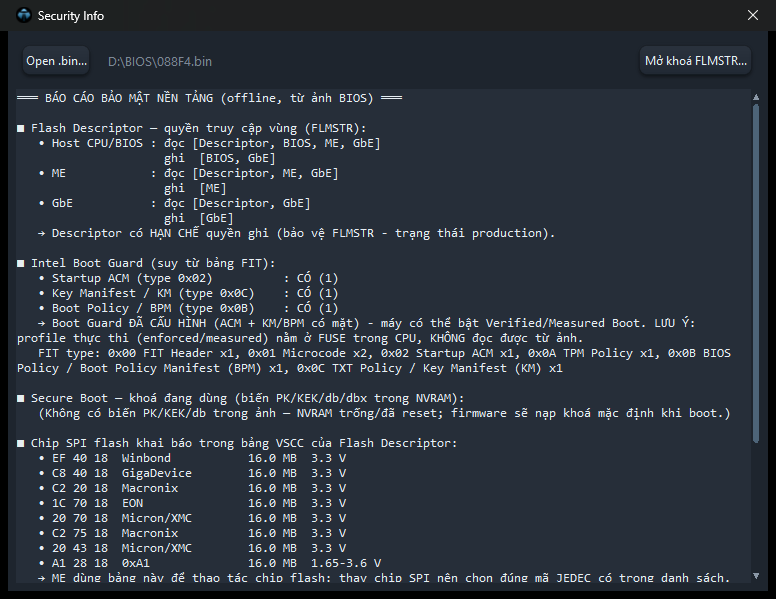 123
123- 1Mở file BIOS.
- 2Báo cáo: quyền vùng flash, Boot Guard, Secure Boot, chip SPI.
- 3Mở quyền đọc/ghi các vùng flash và lưu.
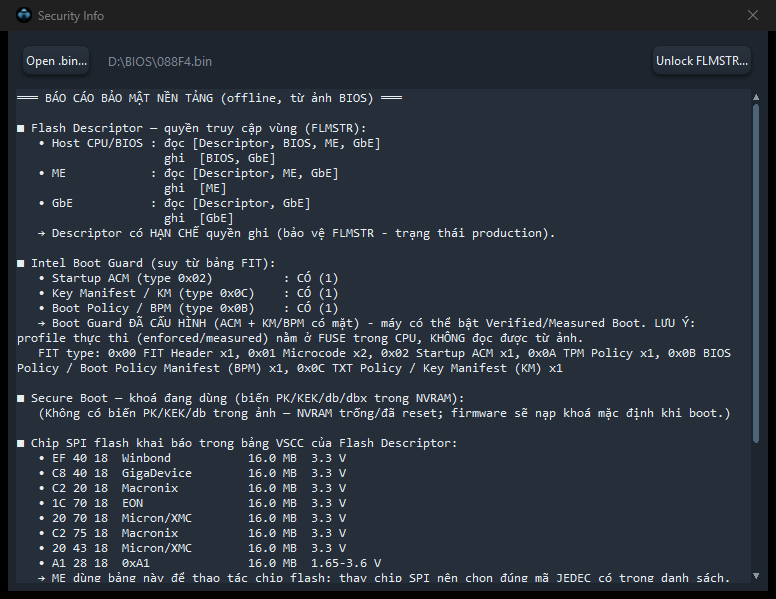 123
123- 1Opens the BIOS.
- 2Report: flash region access, Boot Guard, Secure Boot, SPI chips.
- 3Opens read/write access to all flash regions and saves.
Compare
- Compare File: so sánh hai file theo cấu trúc, mở Hex Compare để xem khác biệt.
- Voltage: so điện áp của hai BIOS cạnh nhau, đổi giá trị ngay trong bảng, bấm Patch.
- Compare File: structural comparison of two files, open Hex Compare for the differences.
- Voltage: voltages of two BIOS side by side; change a value in the table, then Patch.
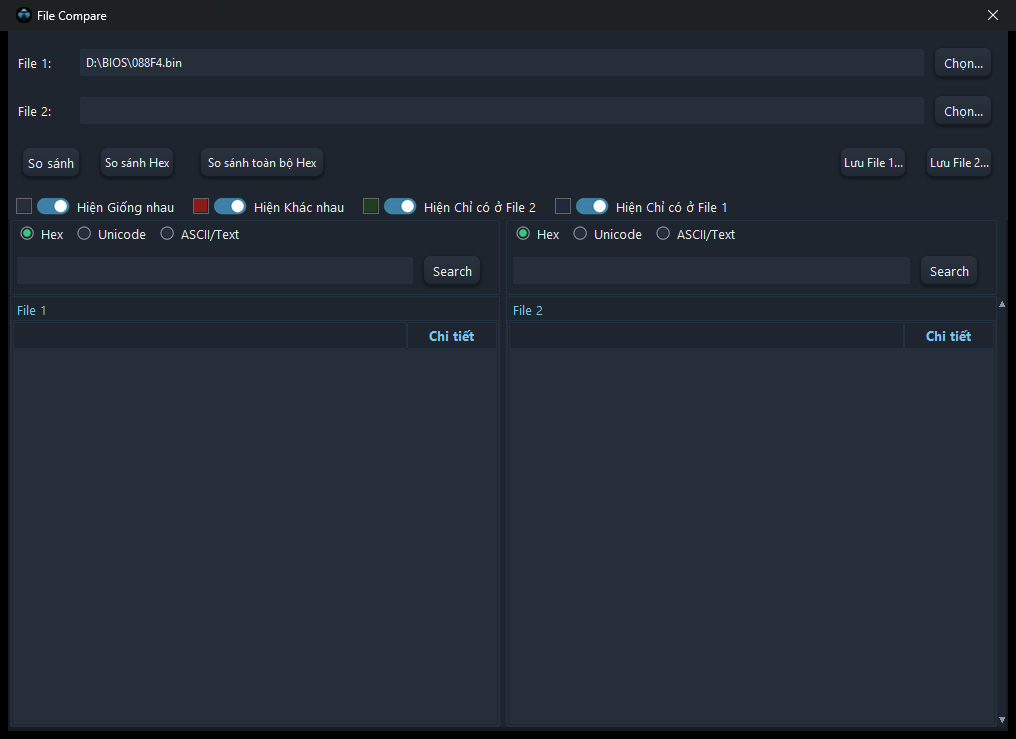 12345678
- 1Chọn File 1 và File 2 cần so.
- 2So sánh theo cấu trúc.
- 3So Hex phần đang chọn.
- 4So Hex toàn bộ hai file.
- 5Lọc: hiện giống nhau, khác nhau, chỉ có ở một file.
- 6Tìm Hex / Unicode / ASCII trong từng file.
- 7Cây hai file, dòng khác nhau được tô màu.
- 8Lưu File 1 / File 2 sau khi chép phần khác.
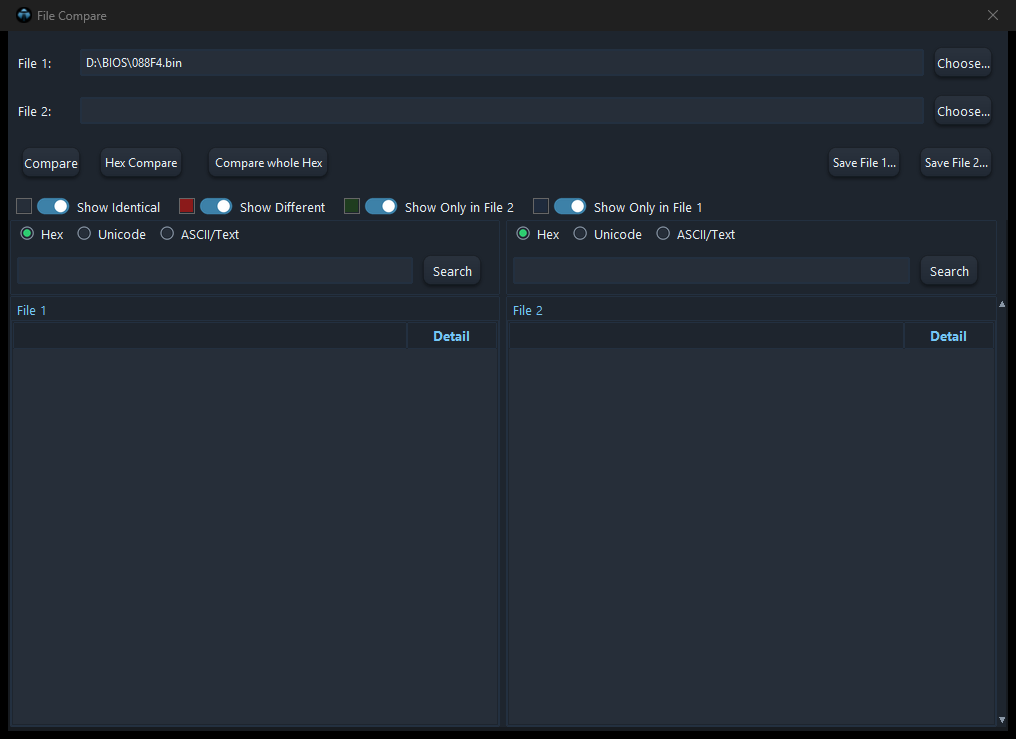 12345678
- 1Choose File 1 and File 2.
- 2Structural comparison.
- 3Hex compare of the selected part.
- 4Hex compare of the whole files.
- 5Filter: same, different, only in one file.
- 6Search Hex / Unicode / ASCII in each file.
- 7Both trees; differing rows are colored.
- 8Saves File 1 / File 2 after copying differences.
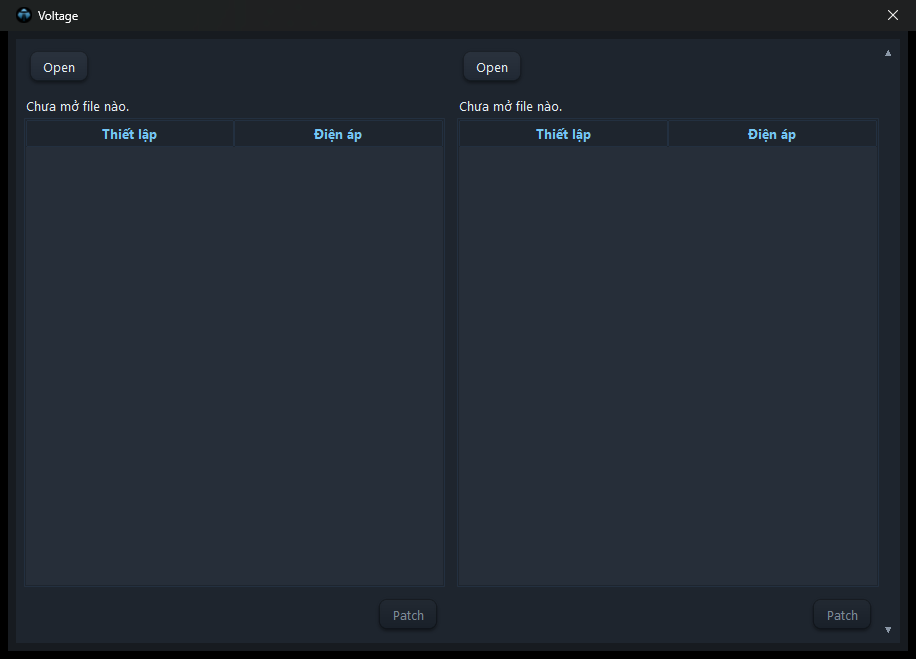 123
123- 1Mở BIOS thứ nhất (trái) và thứ hai (phải).
- 2Bảng điện áp hai bên, dòng khác nhau được tô. Bấm nút trong cột Điện áp để đổi.
- 3Lưu bên đã đổi.
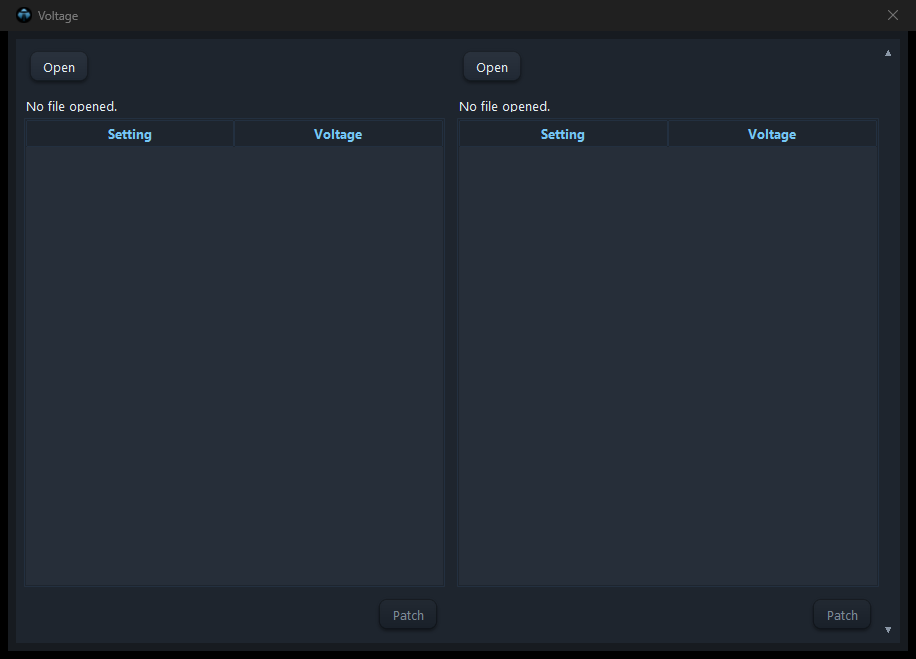 123
123- 1Opens the first (left) and second (right) BIOS.
- 2Voltage tables side by side; differences are tinted. Click the button in the Voltage column to change.
- 3Saves the changed side.
Bios Data
Kho BIOS của riêng bạn. Lần đầu chọn nơi đặt kho, tool tạo thư mục Data Bios. Kéo file hoặc cả thư mục vào để lưu; file được xếp theo Hãng / Model. File trùng nội dung được báo, không lưu hai lần. Chuột phải để mở trong tool, mở thư mục, sửa mã main, xoá.
Your own BIOS library. On first use pick a location; the tool creates a Data Bios folder. Drop files or whole folders to store them, sorted by Vendor / Model. Duplicates are reported, not stored twice. Right-click to open in the tool, open the folder, edit the board code or delete.
MRG, SPL và Lenovo New GenMRG, SPL and Lenovo New Gen
- MRG: ghép hai file (file 1 phần đầu, file 2 nối tiếp), tự lưu khi đủ hai file.
- SPL: tách một file thành hai phần theo kích thước bạn chọn.
- Lenovo New Gen: Open Bios rồi Patch. Khung Key request bên dưới: dán chuỗi request để nhận mã 16 số.
- MRG: joins two files (file 1 first, file 2 appended), saves when both are chosen.
- SPL: splits one file into two parts at the size you choose.
- Lenovo New Gen: Open Bios, then Patch. In the Key request box below, paste the request to get the 16-digit code.
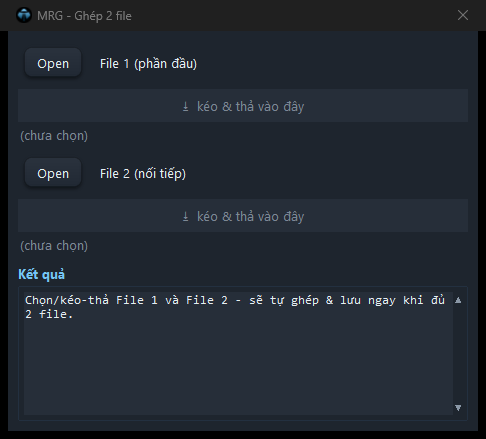 12
12- 1Chọn File 1 (phần đầu).
- 2Chọn File 2 (nối tiếp). Đủ hai file là tự ghép và lưu.
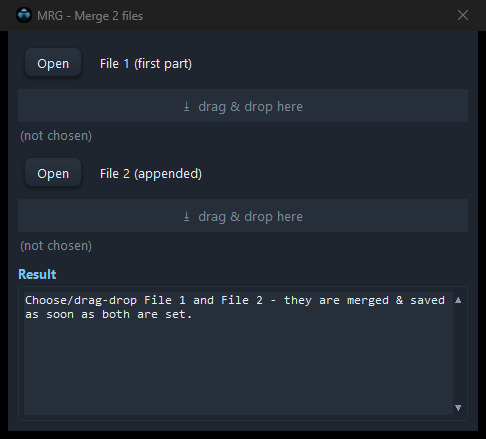 12
12- 1Choose File 1 (first part).
- 2Choose File 2 (appended). Saves as soon as both are chosen.
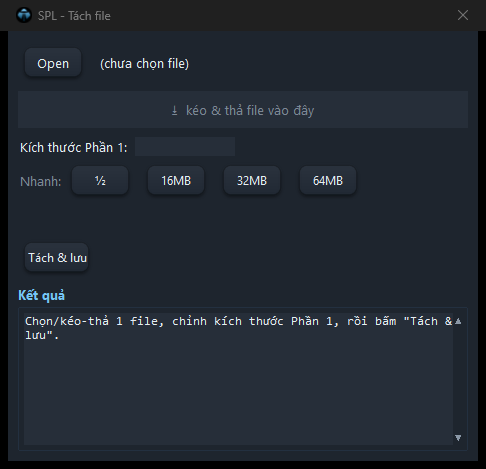 123
123- 1Chọn file cần tách.
- 2Kích thước phần 1: nhập tay hoặc bấm nhanh ½, 16MB, 32MB, 64MB.
- 3Tách và lưu hai phần.
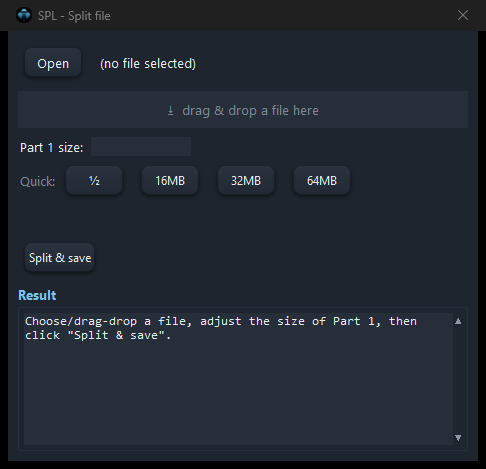 123
123- 1Choose the file to split.
- 2Part 1 size: type it or use ½, 16MB, 32MB, 64MB.
- 3Splits and saves both parts.
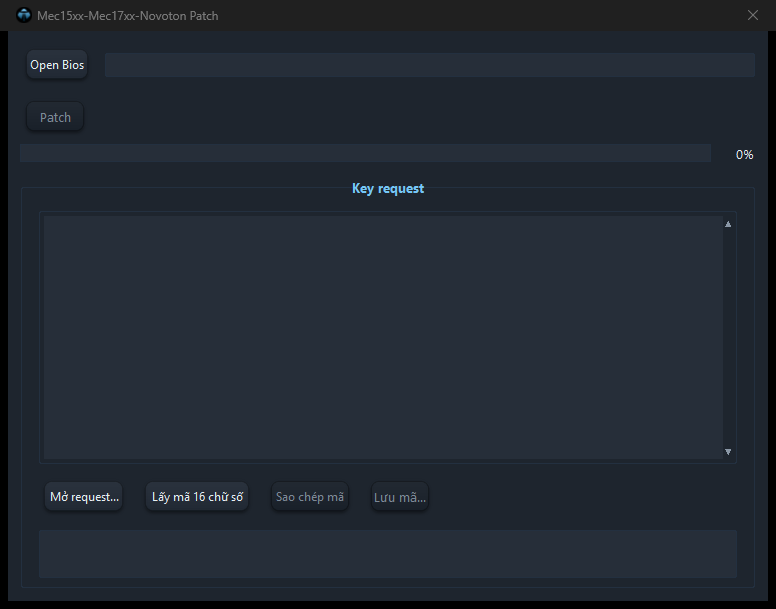 123456
- 1Mở file BIOS Lenovo đời mới.
- 2Vá và lưu; thanh tiến trình hiện %.
- 3Key request: dán chuỗi request từ máy.
- 4Hoặc mở file request.
- 5Lấy mã 16 số.
- 6Sao chép / lưu mã.
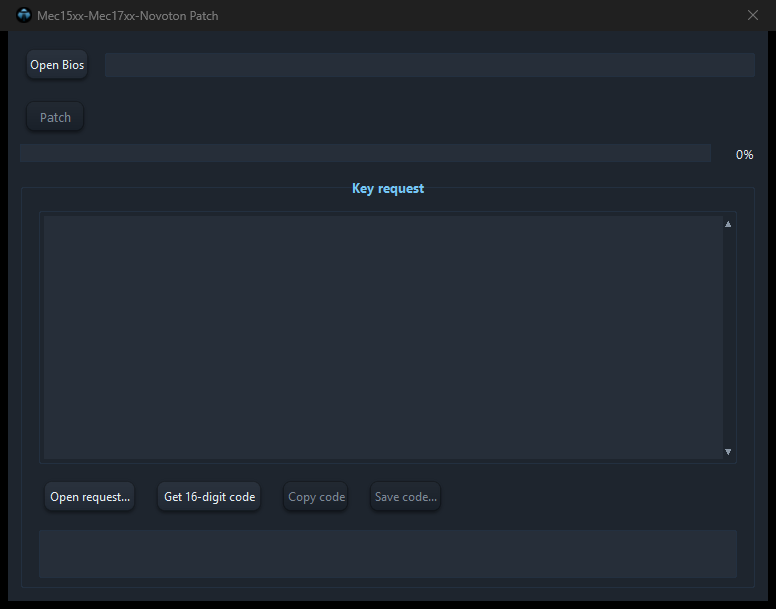 123456
- 1Opens the newer Lenovo BIOS.
- 2Patches and saves; the bar shows progress.
- 3Key request: paste the request from the machine.
- 4Or open a request file.
- 5Gets the 16-digit code.
- 6Copy / save the code.
Kho dữ liệu và cập nhậtData stores and updates
- Option › Kho dữ liệu... kiểm tra và tải các kho đi kèm (ME, FIT, công cụ). Chỉ tải phần còn thiếu, file bạn đã có không bị ghi đè. Tải bị ngắt sẽ tiếp tục từ chỗ dừng.
- Tool tự kiểm tra bản mới. Bản vá nhỏ tải ngầm và hỏi mở lại tool; bản lớn hỏi trước khi tải.
- Giới thiệu › Kiểm tra cập nhật... để kiểm tra ngay.
- Option › Data stores... checks and downloads the bundled stores (ME, FIT, tools). Only missing files are downloaded; files you already have are kept. Interrupted downloads resume.
- The tool checks for new versions by itself. Small patches download in the background and ask to restart; full updates ask first.
- About › Check for updates... checks now.
Trước khi nạp chipBefore flashing
- Luôn đọc chip ít nhất hai lần và so sánh trùng nhau trước khi làm.
- Giữ file dump gốc ở nơi an toàn, chỉ làm trên bản sao.
- Gói update phải đúng model; tool chặn khi thấy khác dòng máy và hỏi khi không chắc.
- Sau khi lưu, mở lại file kết quả trong tool: xem Bios Info còn đủ Serial, Model, Windows Key.
- Máy 2 chip: nạp đúng file cho từng chip.
- Read the chip at least twice and check the reads match before working.
- Keep the original dump safe; work on a copy.
- The package must match the model; the tool refuses another model line and asks when unsure.
- After saving, reopen the result in the tool and check Bios Info still shows Serial, Model, Windows Key.
- Two-chip machines: flash the right file to each chip.
Thông báo thường gặpCommon messages
| Thông báoMessage | Cách xử lýWhat to do |
|---|---|
| Kết nối InternetInternet connection | Kiểm tra mạng rồi bấm Thử lại.Check the network and press Retry. |
| Chức năng bị khoá / cần keyFeature locked / key required | Gói hiện tại chưa có chức năng này, liên hệ admin để nâng gói hoặc thêm đặc quyền.Your plan does not include it; contact the admin to upgrade or add the privilege. |
| Key không còn hiệu lựcKey no longer valid | Key hết hạn hoặc bị thu hồi. Cửa sổ License mở ra để dán key mới.The key expired or was revoked. The License window opens to paste a new one. |
| Phần cứng thay đổiHardware changed | Gửi Machine ID mới cho admin để cập nhật.Send the new Machine ID to the admin. |
| Server Locked | Máy bị khoá trên máy chủ, liên hệ admin.The machine is locked on the server; contact the admin. |
| Sai dòng máyWrong model line | Gói không phải của model này, chọn gói khác.The package is for another model; choose another package. |
| Cần dump tham chiếuReference dump needed | ME máy hỏng bố cục, chọn một dump tốt cùng model.The machine ME layout is broken; pick a good dump of the same model. |
| Không ghi được vào thư mục của toolCannot write to the tool folder | Chuyển tool sang thư mục có quyền ghi (không đặt trong Program Files).Move the tool to a writable folder (not Program Files). |
Liên hệ adminContact the admin
Tlab Technology. Khi liên hệ, gửi kèm Machine ID và ảnh chụp thông báo.
Tlab Technology. When contacting, include your Machine ID and a screenshot of the message.
+84 911 202 212
Không tìm thấy mục nào.Nothing found.